Depence R4 Video Rendering Guide

🎞️ Depence R4 Video Rendering Guide
Depence R4 Video Rendering Guide
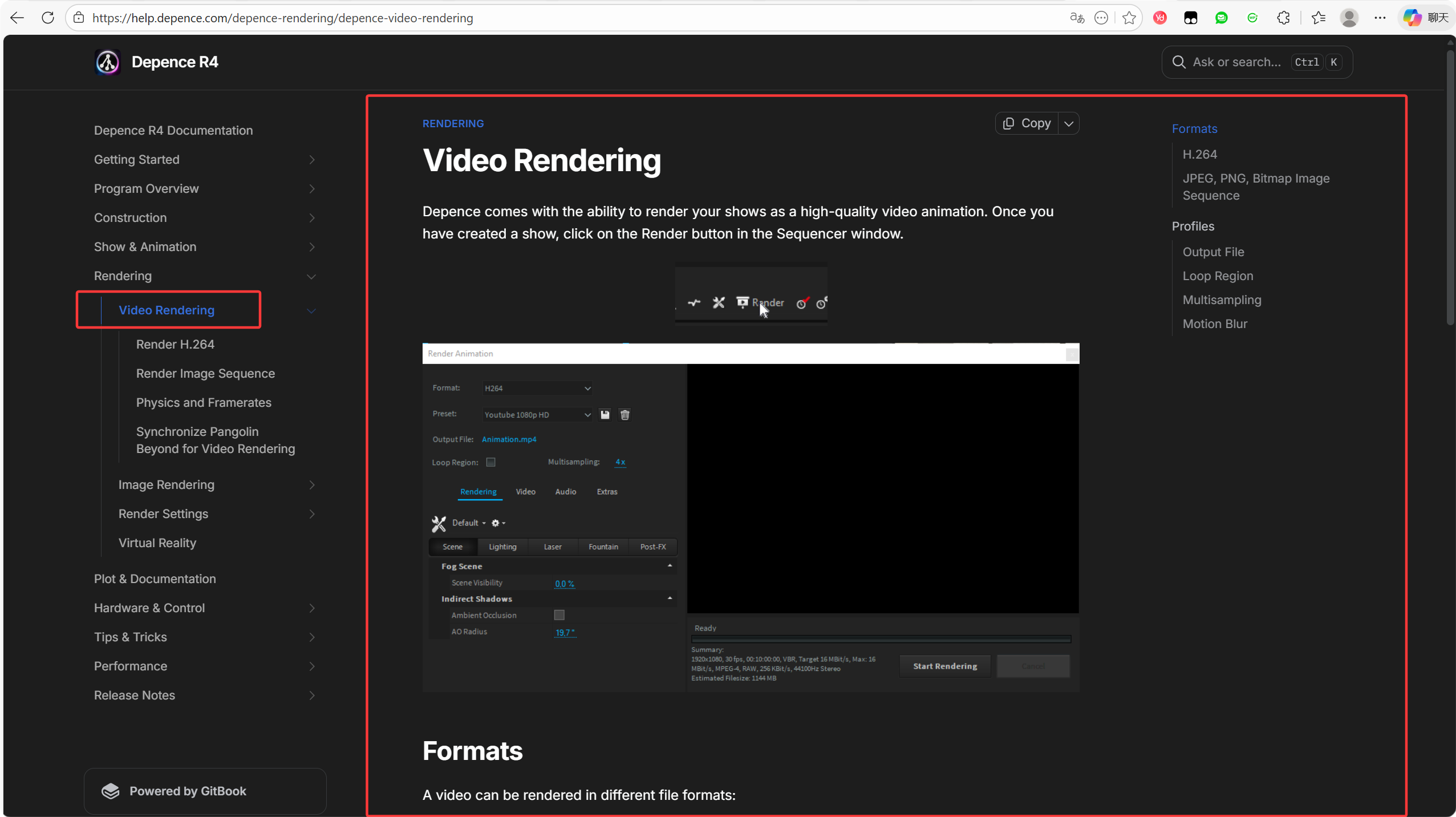
1. Where to Start Open the Sequencer window and click the Render button in the toolbar.
2. Key Settings
-
Formats: * H.264: Renders an MP4 video with audio. Best for YouTube or sending directly to clients.
-
Image Sequence (JPEG/PNG/BMP): Saves every frame as an individual image. Best for professional post-production.
-
-
Output Path: Click the blue filename to change where the file is saved. (Tip: Avoid using numbers in the filename when exporting image sequences).
-
Loop Region: Check this to render only the selected loop area. Note: Scenes starting before the loop won’t be triggered.
3. Quality & Effects
-
Multisampling: Controls anti-aliasing and light beam detail. Higher values = better quality but longer wait times (e.g., 8x sampling can take 8x longer to render).
-
Motion Blur: * Found in the Extras tab.
-
Set Shutter Angle to 180° for a natural cinematic look.
-
Set to 0° to disable.
-
Official documentation reference: Depence Help Center – Video Rendering
Contact Information:
For better communication, you can reach us via:
- Mobile & WhatsApp: +86 13437848416
- WhatsApp: Click here to contact us
- You can contact us via WhatsApp to let us know your needs, or leave your comments, and we will reply to your messages promptly.
After-Sales Service:
We provide professional after-sales technical service to ensure you get great value and satisfaction!
- All products are covered by a one-year warranty for non-human issues.
- We adhere to the principle of low profit and high sales, dedicating ourselves to serving users. We will patiently explain and solve problems for you.
- We operate with integrity, ensuring all products are reliable and free from defects. If you are satisfied with our services and products, you can share DALANG SHOW with your friends. If you have any questions, please feel free to contact us.