🎞️ How to automatically launch Madrix playback settings after computer startup.
📥(Right-click to save and download the video to your computer)
- Because Madrix uses a built-in auto-start function, patch files can be deleted, rendering the software unusable.
- Therefore, for your project, Madrix needs to start automatically after the computer boots up. The following method can resolve this issue.
- (Currently, for all cracked versions of Madrix, this is the only way to achieve automatic Madrix startup after the computer boots up.)
The principle behind this method is the automatic program startup function of the Registry Editor built into Windows computers.
- Open the Registry Editor: Press Win + R, type regedit, and press Enter.
- Navigate to the registry path: Navigate to HKEY_LOCAL_MACHINE\SOFTWARE\Microsoft\Windows\CurrentVersion\Run. All key-value pairs here point to programs that will run when the system starts.
Important tips before installation:
1. Before installing the software, temporarily disable your antivirus software. This helps prevent the antivirus program from mistakenly identifying the patch files in the installation package as a virus and deleting them, which could cause the software to malfunction.
2. After the installation is complete, add the software’s(D:\MADRIX5) installation directory path to your antivirus software’s trusted zone/exclusion list/whitelist to ensure the files are not deleted.
3. Once the above steps are completed, you can re-enable your antivirus software and use your computer normally.
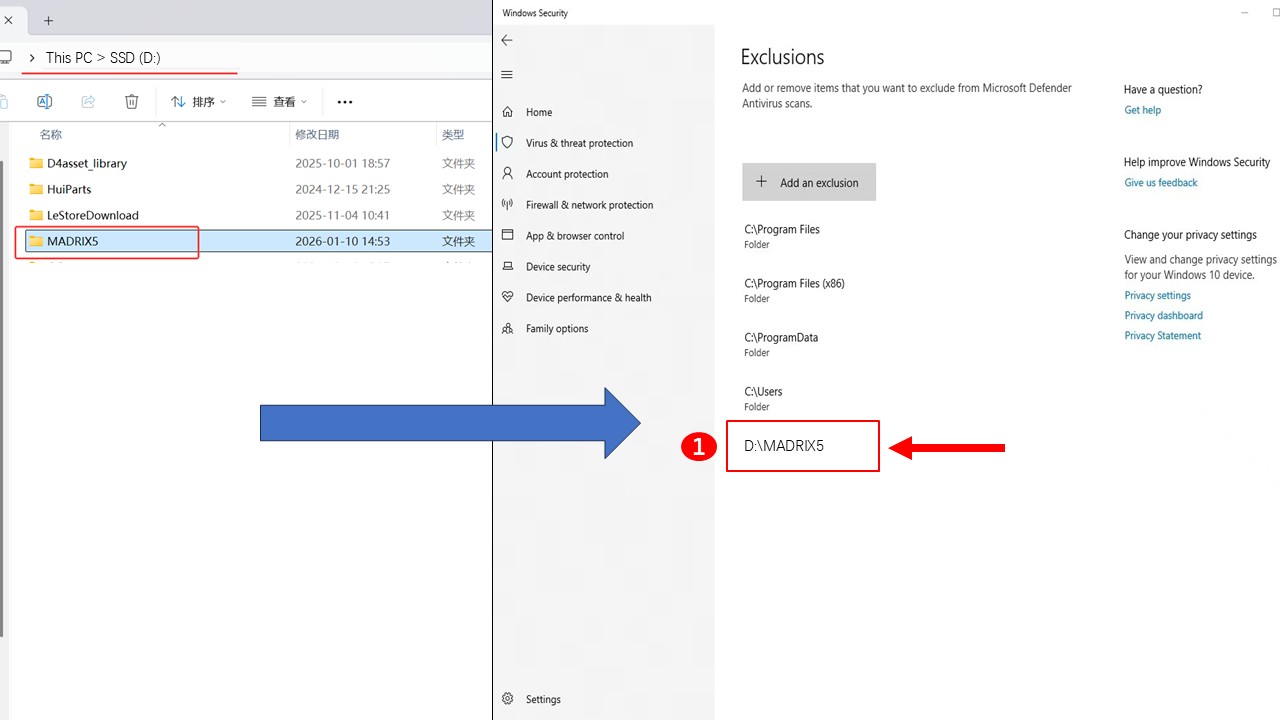
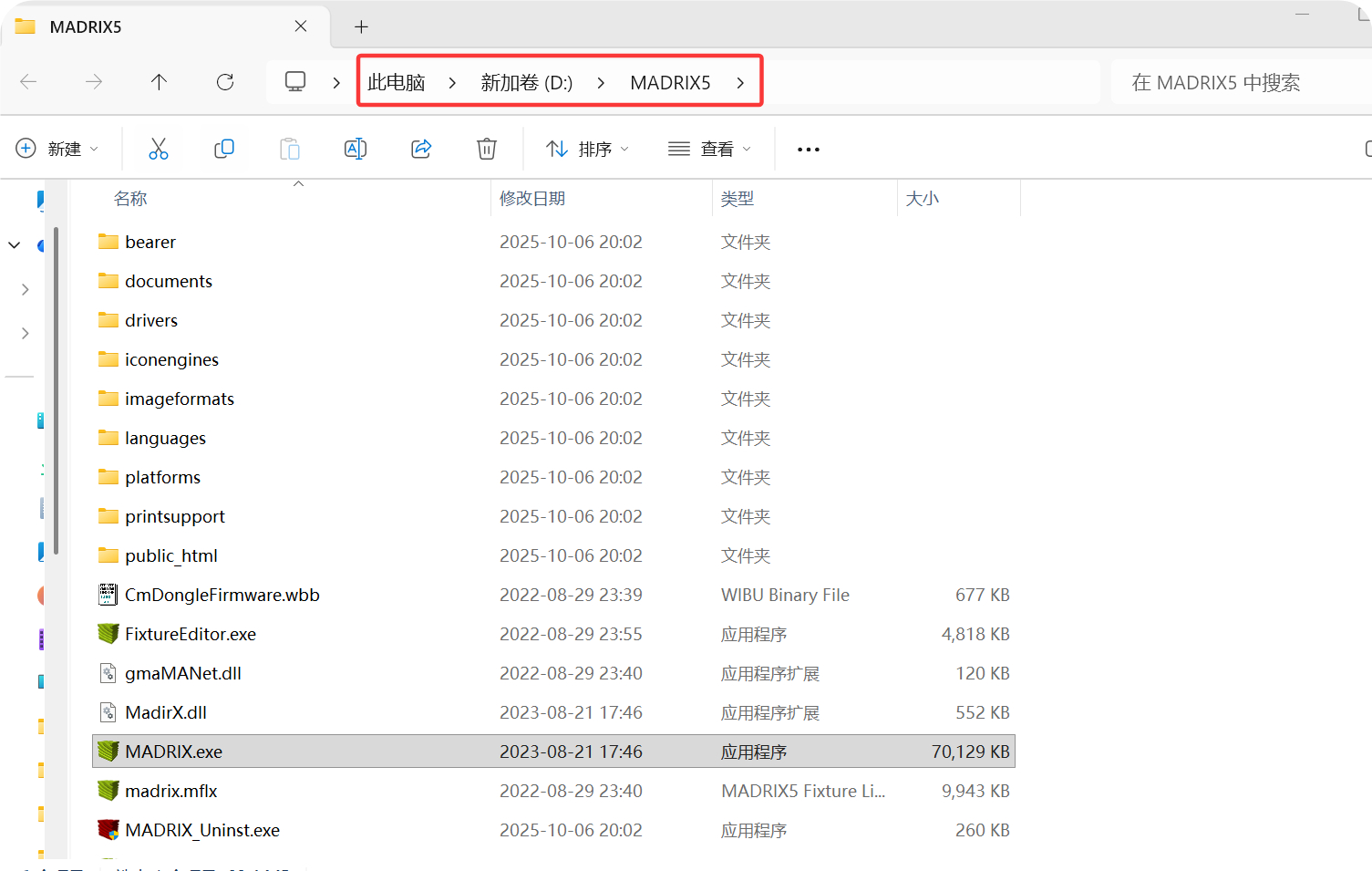
1. You need to install Madrix to your computer’s D drive.
2. Open the “Startup program_1.0.0.0” program.
📥Download link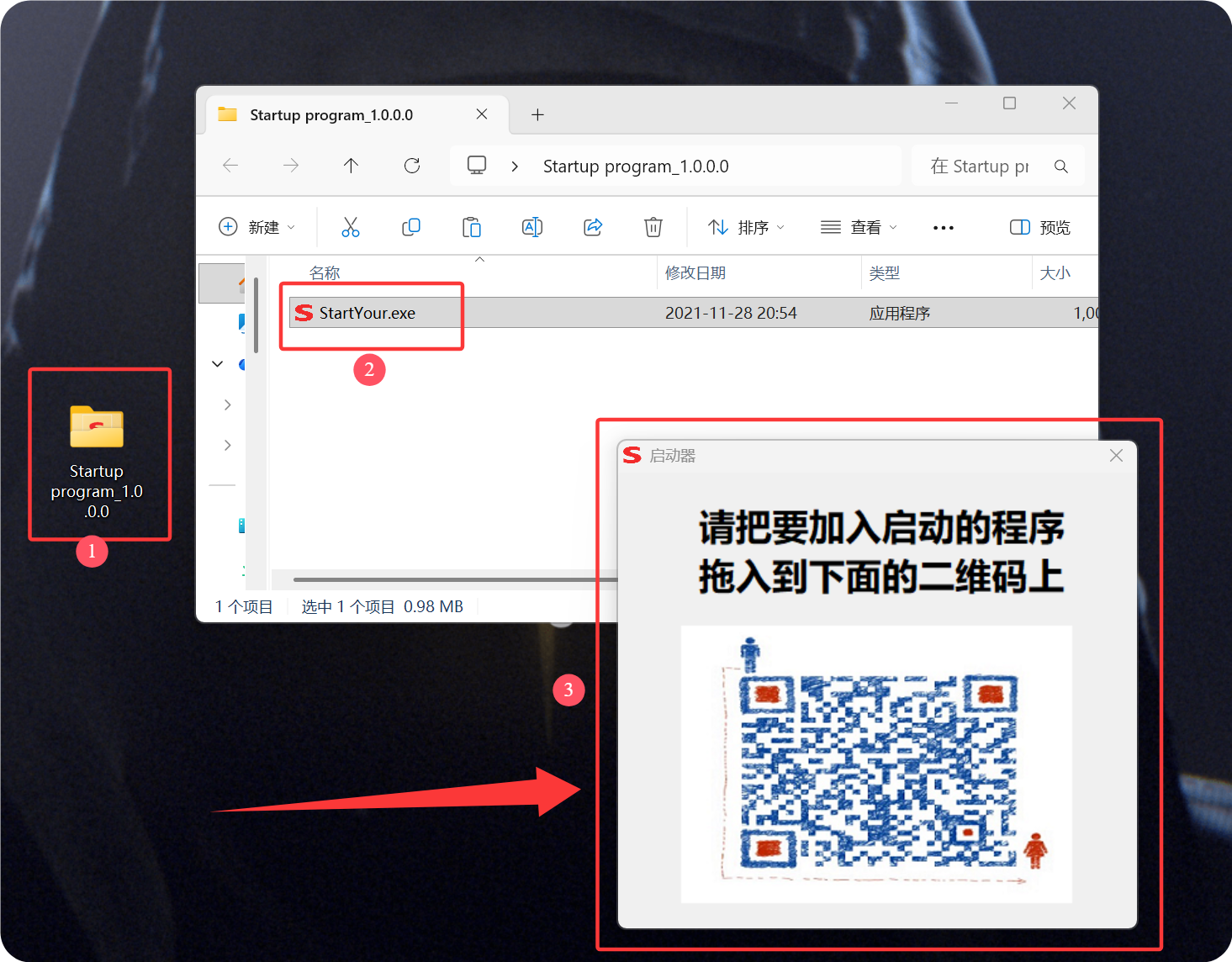
3. Drag (MADRIX.exe) onto the QR code with your mouse.

- The following icon indicates successful setup; the Madrix software will start automatically when your computer system boots up.
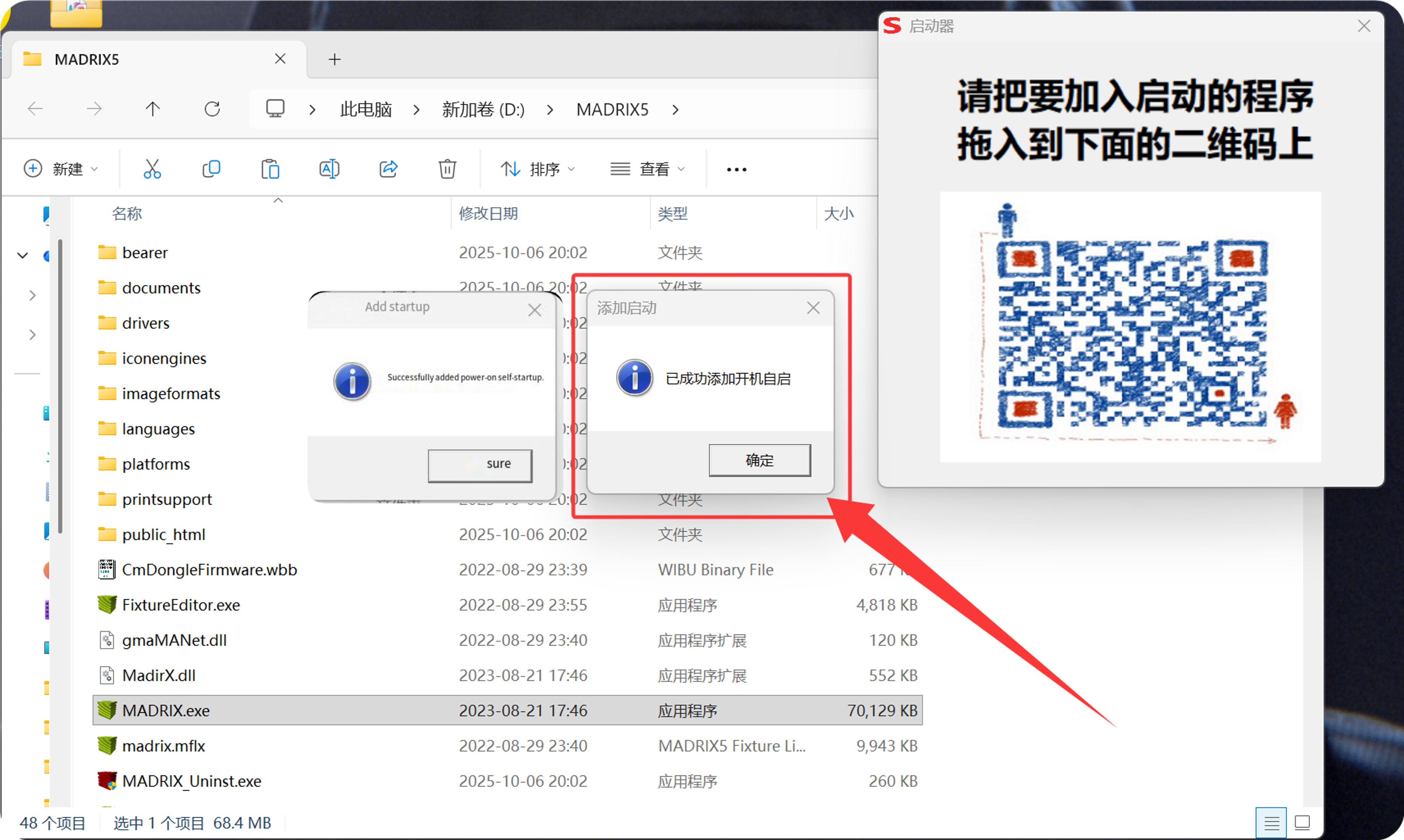
- Then you can configure the programs you need in your Madrix.
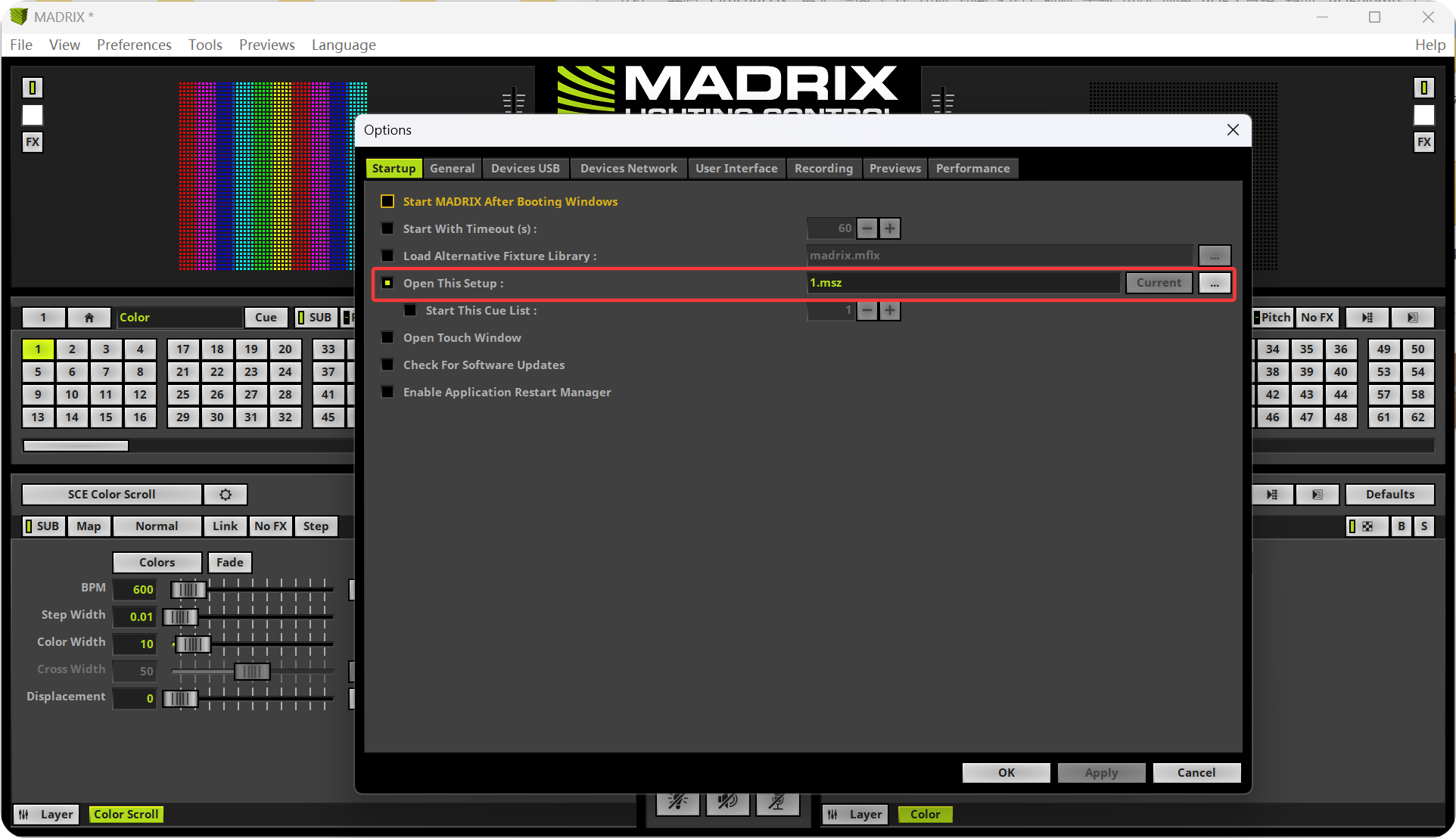
- If you want to disable the automatic startup of the Madrix program.
- Drag (MADRIX.exe) onto the QR code with your mouse.
- The following icons indicate that the settings were successfully canceled;