MA2onpc 3.9.61.3、beyond 5.5、capture2025 Installation Tutorial

🎞️MA2onpc 3.9.61.3、beyond 5.5、capture2025 installation tutorial video.
📥(Right-click to save and download the video to your computer)

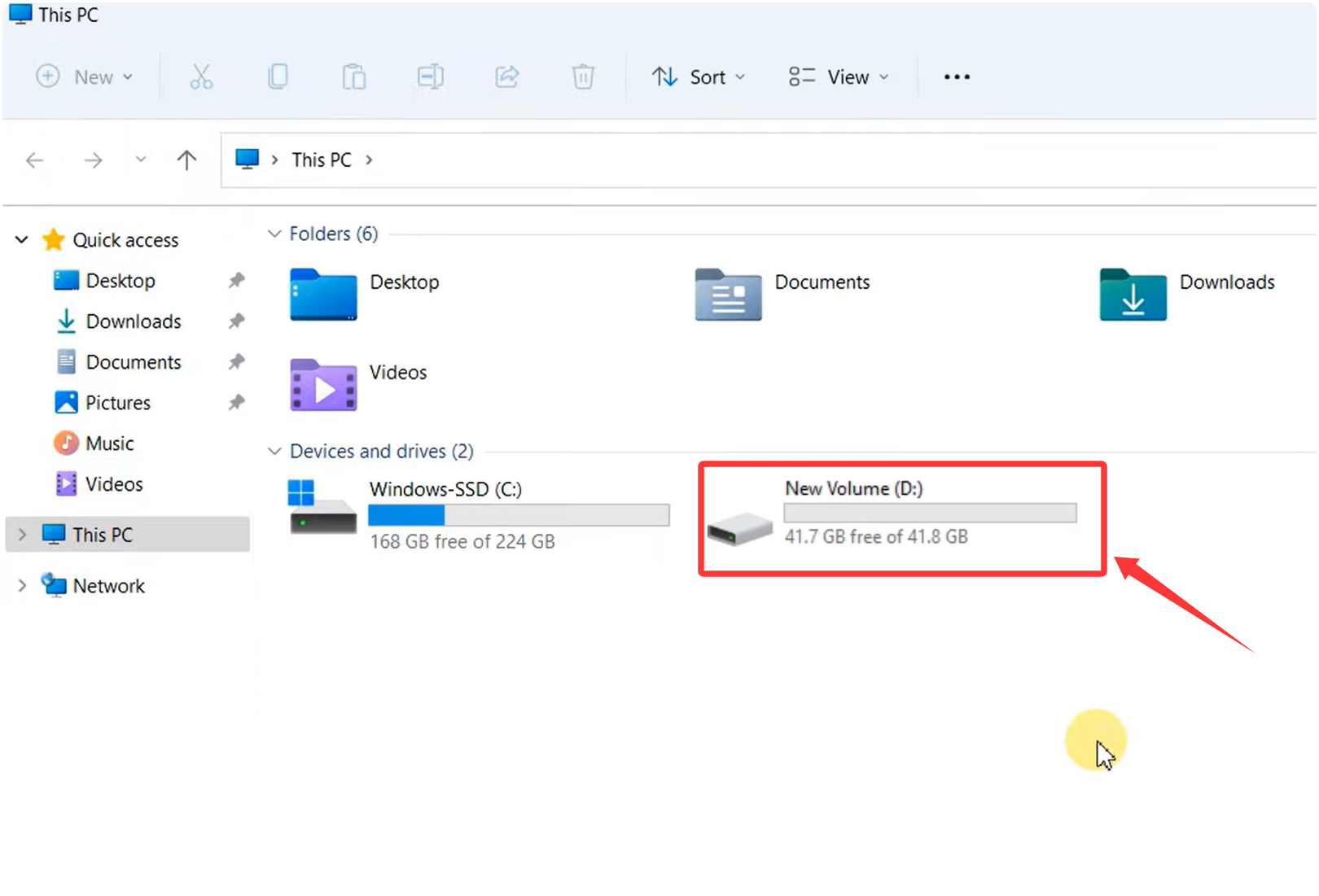
- Before installing the software, your computer must have a D drive.
If there is no D drive, you need to create a D drive on your computer for proper installation.
- (Note: Drive D must be the computer’s D drive (with more than 10GB of space). The software can only be installed properly if there is a D drive; using a USB drive as the D drive will not work.)
-
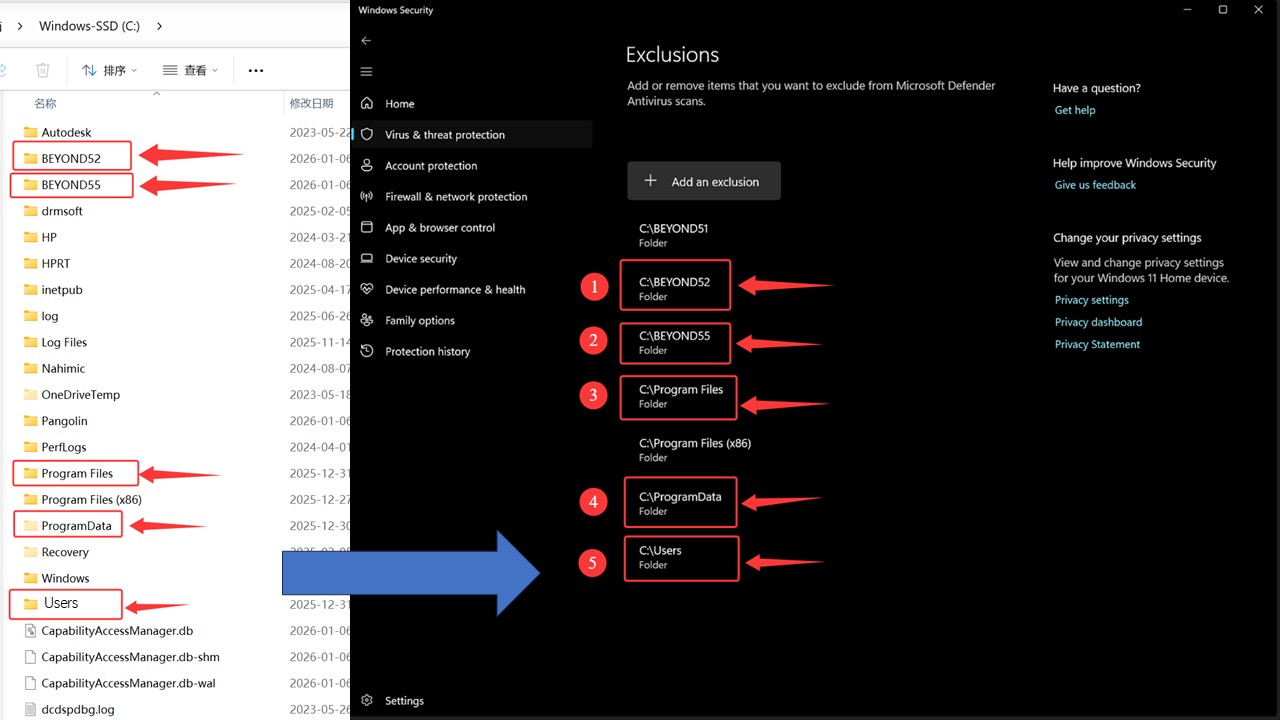
Temporarily disable your antivirus software before installation (right-clicking its system tray icon usually offers a “Turn off protection temporarily” option). -
In your antivirus settings, find the “Trusted Zone”, “Exclusions”, or “Whitelist” feature. -
Add the following three key system folders as trusted paths: -
C:\BEYOND52 -
C:\BEYOND55 -
C:\Program Files -
C:\ProgramData -
C:\Users(On some language systems, this folder might be named “Utilisateurs,” etc.)
-
-
After adding them, re-enable your antivirus. You can now install and use our software normally. ✅
Tip: Whitelisting specific folders instead of disabling your antivirus entirely helps keep your computer safe from real viruses that might come from websites or other unverified software. 🧠
Installation Steps:
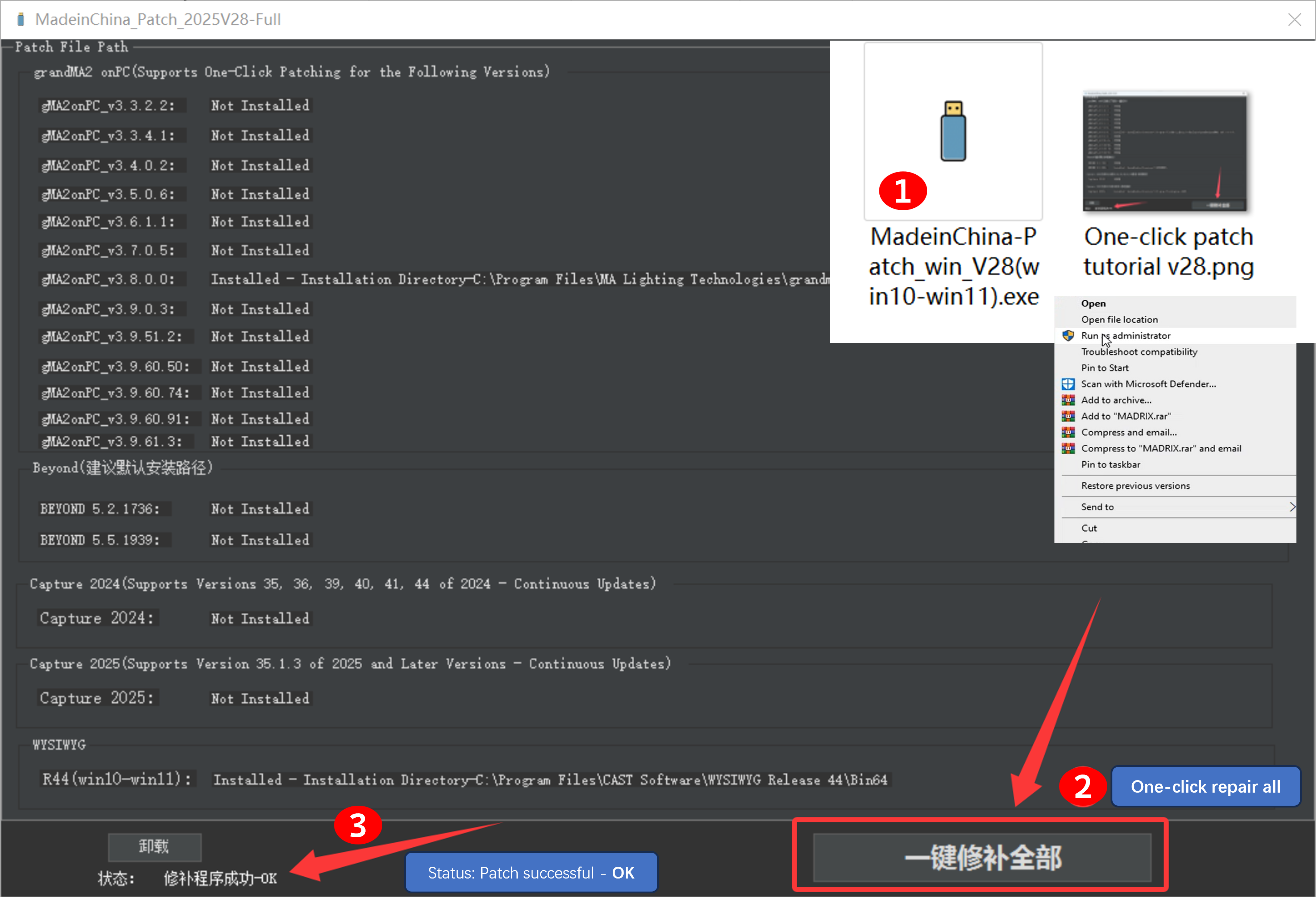
- First, install the main program. ( Please install the software on the C drive by default)
- Run One-click patching_V28 as an administrator (as shown in the example image)
- Then click ‘One-click repair all‘.
- Display – Status: Patch successful – 0K (indicates the patch was successful)
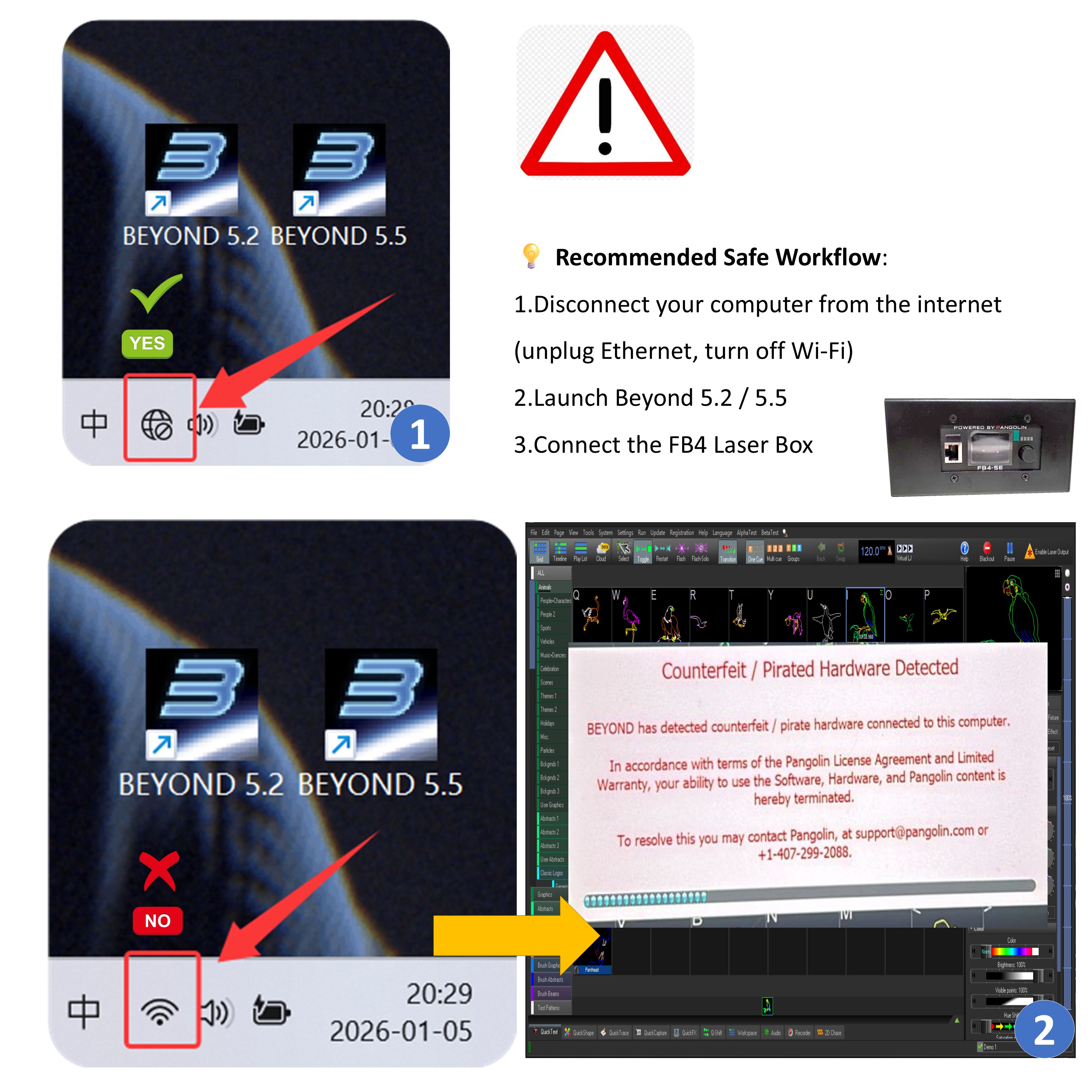
Safety Guide for Connecting the FB4 Laser Box with Beyond 5.2 and Beyond 5.5 Software:
⚠️ WARNING
-
Software Versions: Beyond 5.2 and Beyond 5.5
-
Hardware: FB4 Laser Box
-
Core Issue:
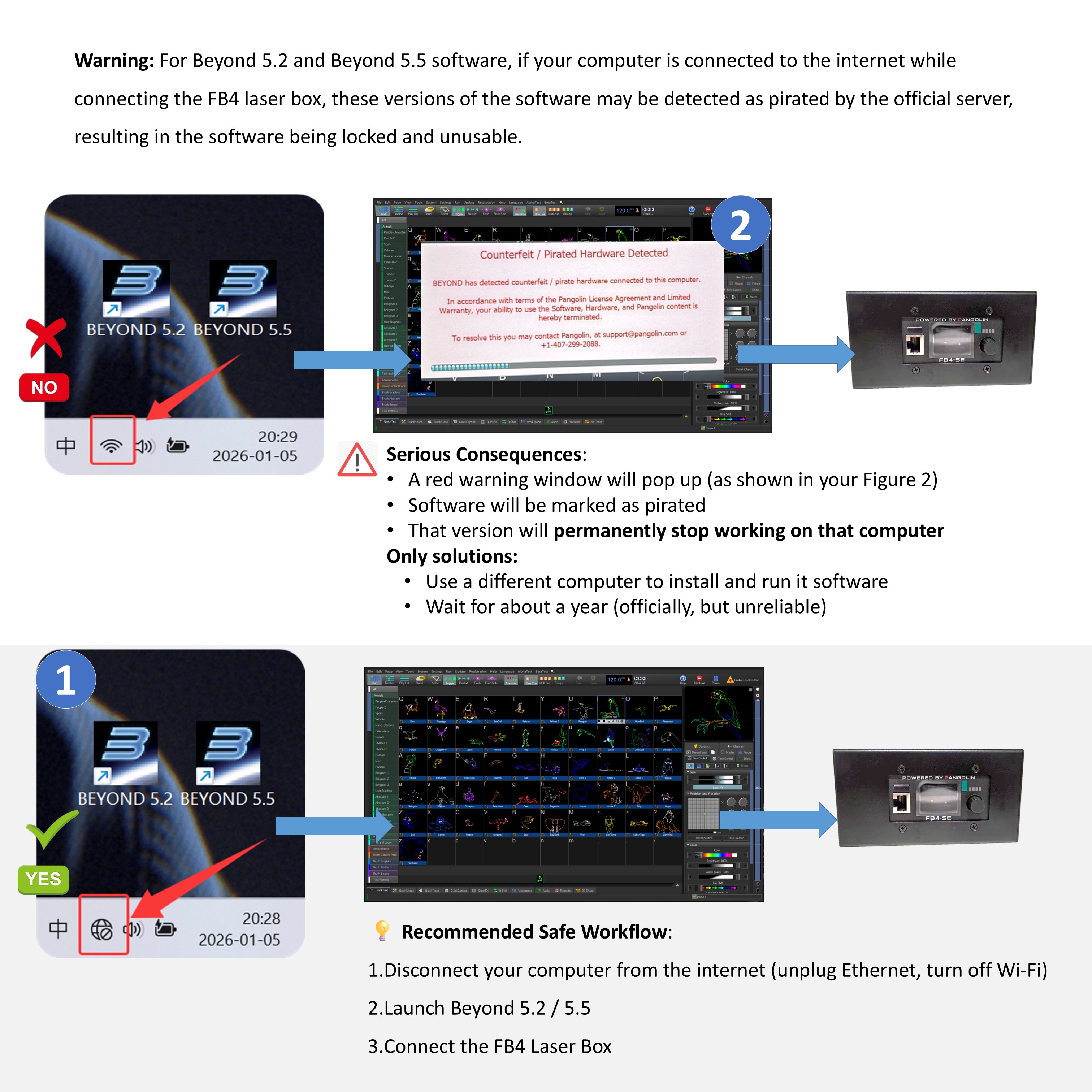
When these software versions connect to the FB4 Laser Box while the computer is online, the official server can detect it as unauthorized/“pirated” usage. This will lock the software, making it unusable. -
Serious Consequences:
-
A red warning window will pop up (as shown in your Figure 2)
-
Software will be marked as pirated
-
That version will permanently stop working on that computer
-
Only solutions:
-
Use a different computer to install and run it Software
-
Wait for about a year (officially, but unreliable)
-
-
-
Safe Usage Instructions:
-
When using Beyond 5.2 / 5.5 with FB4, the computer must be completely offline
-
Disable both Ethernet and Wi-Fi
-
-
Do not connect to the internet while the software is running
-
Use at your own risk
-
💡 Recommended Safe Workflow:
-
Disconnect your computer from the internet (unplug Ethernet, turn off Wi-Fi)
-
Launch Beyond 5.2 / 5.5
-
Connect the FB4 Laser Box
BEYOND.exe Application Error (0xC0000906) – Unable to Open Beyond
Problem Description:
Beyond could not be opened. Reinstalling the software several times did not solve the issue.
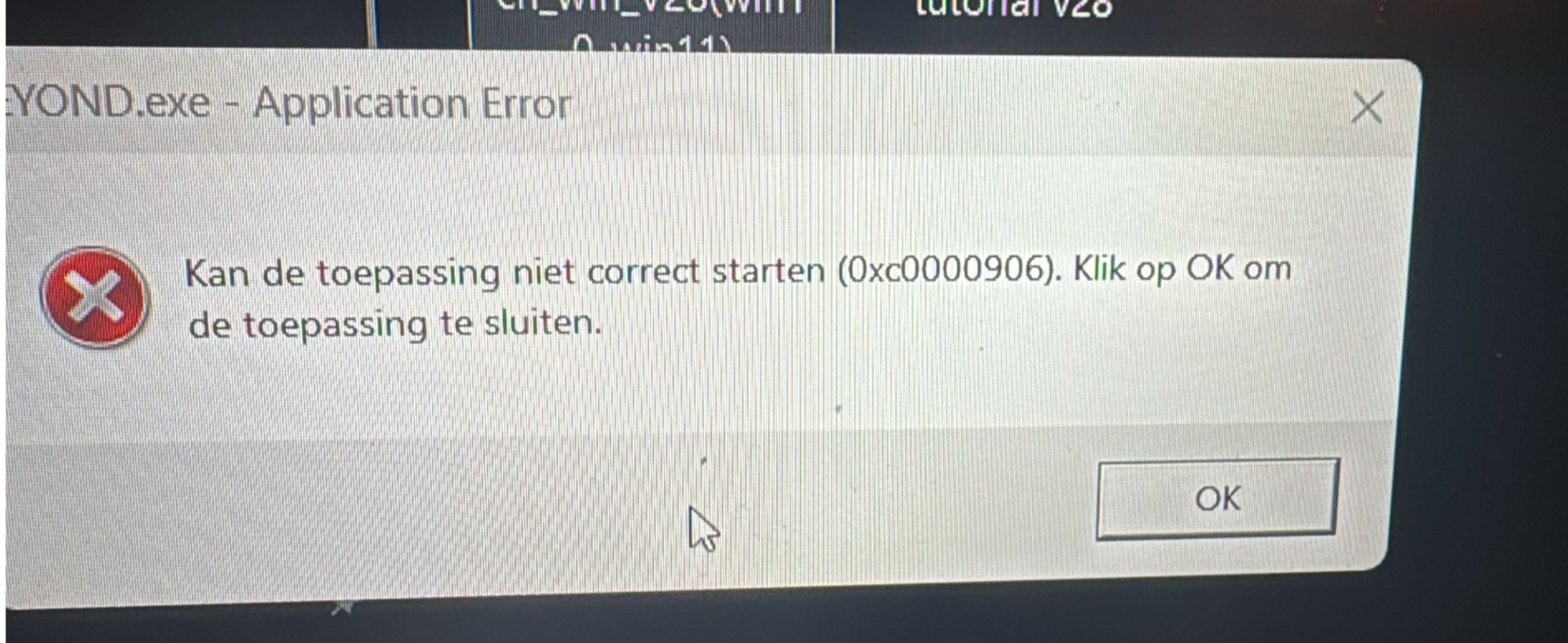
An error window appeared with the following message:
BEYOND.exe – Application Error
Kan de toepassing niet correct starten (0xC0000906).
Klik op OK om de toepassing te sluiten.
Cause:
The error code 0xC0000906 is usually caused by firewall or security software blocking or quarantining Beyond files.
In this case, the executable or related components were prevented from running by security settings, not by a faulty installation.
Solution: Turn off the firewall.
Solution:
-
Open the system firewall or any third-party security software (such as Windows Defender or antivirus software).
-
Check whether there are any blocking or quarantine records related to Beyond.
-
Add the Beyond installation directory or executable file (.exe) to:
-
the firewall’s allowed list / whitelist
-
the security software’s trusted programs list
-
-
If necessary, temporarily disable the firewall or security software to test whether Beyond can start normally.
-
Restart the computer and open Beyond again to confirm the issue is resolved.
Result:
After adjusting the firewall and security settings, Beyond is working normally again.
Contact Information:
For better communication, you can reach us via:
- Mobile & WhatsApp: +86 13437848416
- WhatsApp: Click here to contact us
- You can contact us via WhatsApp to let us know your needs, or leave your comments, and we will reply to your messages promptly.