
Explanation of “Virus Warning” When Installing Software and Guide for Safe Use
Dear User, 👋
If you receive a “Virus Warning” or risk alert from your security software (like an antivirus) while installing or using our software, please don’t be alarmed. This is a common and expected occurrence for full-featured professional tools. Here’s a clear explanation of why it happens and why you can use our software with complete confidence.
⚠️1️⃣. Why Does Cracked Software Trigger Virus Warnings?
-
Similarity to Malicious Behavior: -
To unlock the software’s full features, the cracking process needs to modify the original program’s code, inject a crack patch, or use a key generator. -
These “modification” and “injection” actions are highly similar in technical logic to the behavior of malware (viruses, trojans). The antivirus’s behavioral detection cannot distinguish between “benign cracking” and “malicious attack,” so it flags the activity as risky based on its security rules. 🛡️
-
-
Lack of Digital Signature Verification: -
Genuine software carries the developer’s digital signature, acting as its “ID card.” An antivirus can verify this signature to confirm the software’s legitimacy and safety. -
Cracked software has its original signature broken or removed, failing this security check. To the antivirus, it becomes an “unverified” or unknown program, prompting a warning. ❓
-
2️⃣. Rest Assured, Our Software is Safe ✅
-
Our software will NOT cause any damage to your computer system. -
Our software will NEVER steal your personal information, bank details, or any private data.
🛡️ Two Safe & Recommended Solutions for Installation
-
Temporarily disable your antivirus software before installation (right-clicking its system tray icon usually offers a “Turn off protection temporarily” option). -
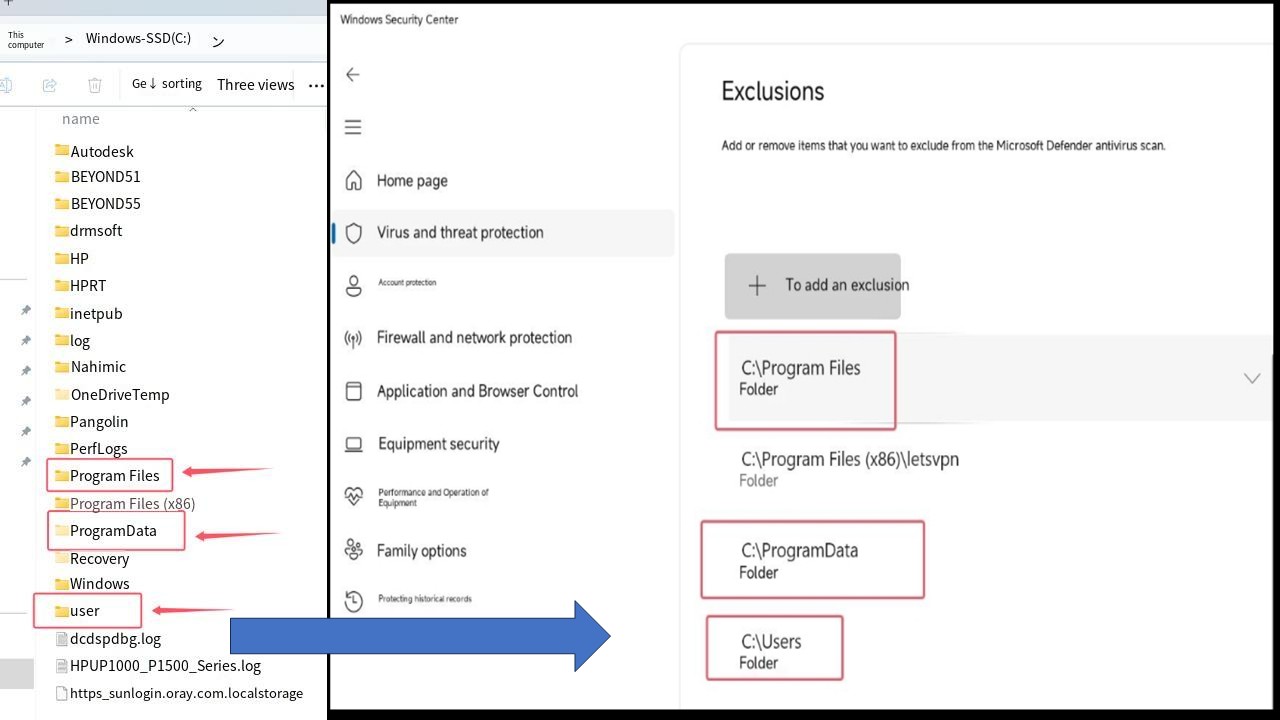
In your antivirus settings, find the “Trusted Zone”, “Exclusions”, or “Whitelist” feature. -
Add the following three key system folders as trusted paths: -
C:\Program Files -
C:\ProgramData -
C:\Users(On some language systems, this folder might be named “Utilisateurs,” etc.)
-
-
After installing the software, re-enable your antivirus. You can now install and use our software normally. ✅
Tip: Whitelisting specific folders instead of disabling your antivirus entirely helps keep your computer safe from real viruses that might come from websites or other unverified software. 🧠
If you cannot locate the “Exclusions,” “Trusted Zone,” or “Whitelist” options in your antivirus software, you can search on Google using your computer brand or the name of your antivirus program along with keywords like “how to add exclusions.” You will usually find clear step-by-step guides or video tutorials.
-
Install our software on a computer dedicated to your work. -
Keep your personal computer completely separate for daily entertainment, social activities, and storing highly sensitive personal information. -
This meets your work needs while giving you complete peace of mind. 💻
- More than 1,000+ users have been using our products with excellent experiences, and many new customers come to us through recommendations from existing users. We sincerely appreciate your trust and support. 🙏
- We understand that high-quality after-sales service is the key to earning our customers’ confidence, and we will continue to pay attention to every detail to ensure the best experience for you.✨
- If you encounter any issues during installation or have any questions at all, please feel free to contact our After-sales team. We’re always here to help! 🤝
- Wishing you a pleasant and smooth experience! 😊
Contact Information:
For better communication, you can reach us via:
- Mobile & WhatsApp: +86 13437848416
- WhatsApp: Click here to contact us
- You can contact us via WhatsApp to let us know your needs, or leave your comments, and we will reply to your messages promptly.
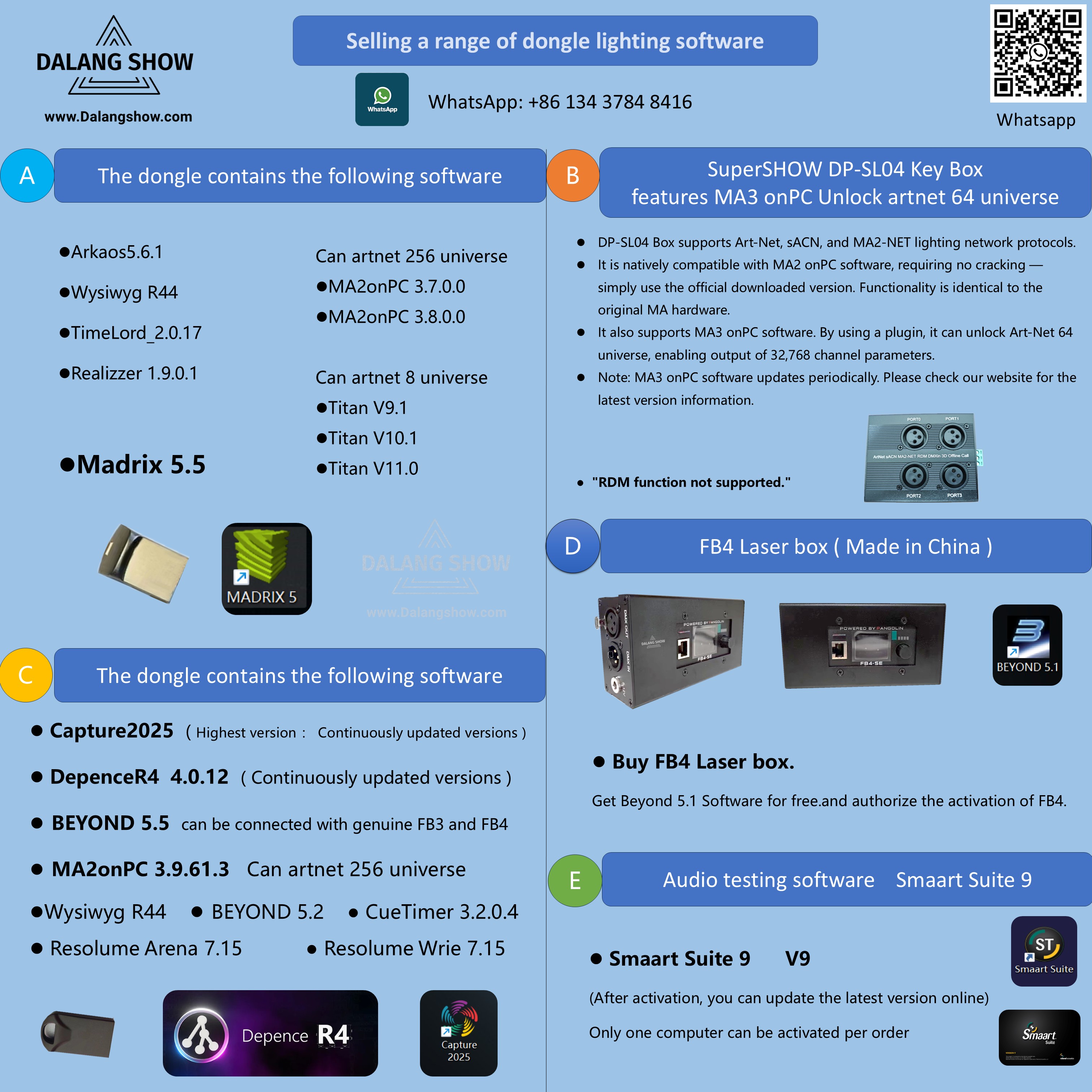
 Dalang Show
Below in total 2 A response
Explanation of Virus Warnings When Installing Software and Guide for Safe Use
Important Notice Before Installation:
Before installing the software, please temporarily disable your antivirus software. This helps prevent the antivirus program from mistakenly identifying patch files in the installation package as viruses and deleting them, which may cause the software to malfunction.
After the installation is complete, please add the software installation folder path to your antivirus software’s Trusted Zone / Exclusions / Whitelist to ensure the files are not removed.
Once this is done, you may re-enable your antivirus software and use your computer normally.
Please note that some software may require the computer firewall to be disabled in order to function properly.