2 Ways To Create Control Panel Shortcut On Desktop In Windows 11

The Control Panel is no longer the default place to access settings and options in Windows 11. The redesigned Settings app houses all settings and options in Windows 11.
The Settings app, which has been around for a decade now, does not include all the settings and options that are part of the Control Panel. Yes, Microsoft has managed to migrate almost all the settings to the new Settings app, but a few are still part of the Control Panel.
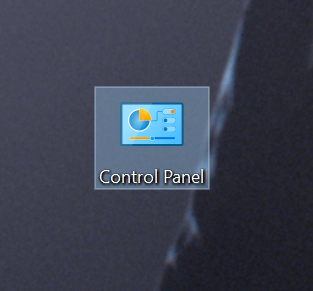
Because of this reason, we still need to access the Control Panel to change various settings and options.
If you often need to access the Control Panel, you might want to create a shortcut to the Control Panel on the desktop so that you can access it quickly and easily.
This guide shows you the three easy ways out there to create the Control Panel shortcut icon on your Windows 11 desktop.
Method 1 of 2
Create Control Panel shortcut on Windows 11 desktop
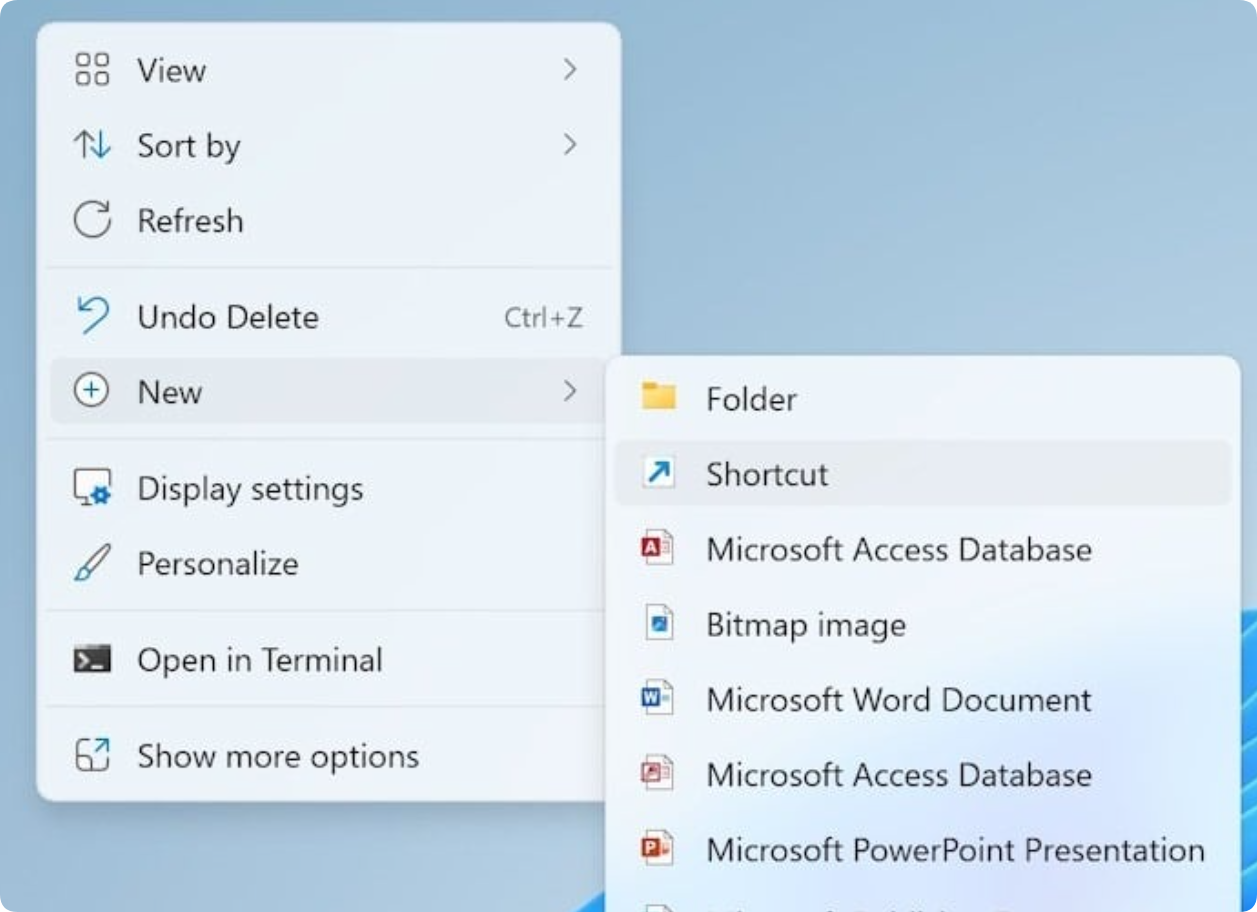
Step 1: Perform a right-click on an empty spot on the desktop, click New, and then click Shortcut to open the Create Shortcut wizard.
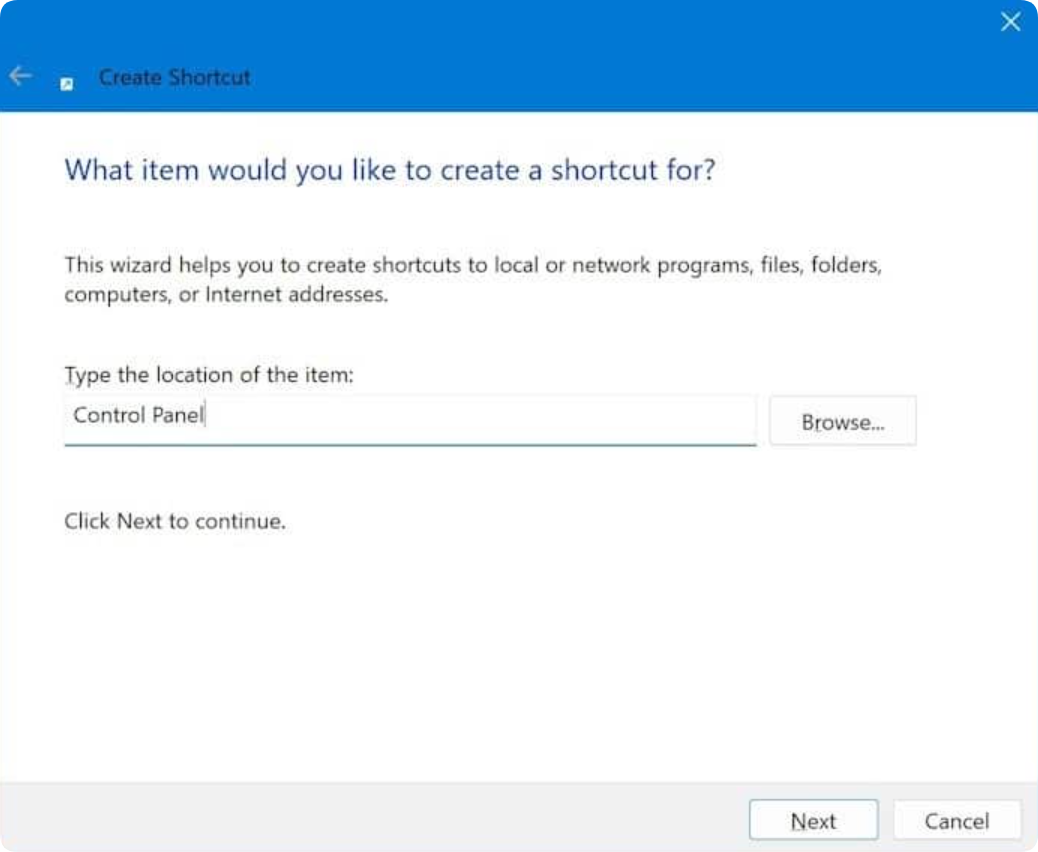
Step 2: In the Type the location of the item field, type Control Panel and then press the Next button.
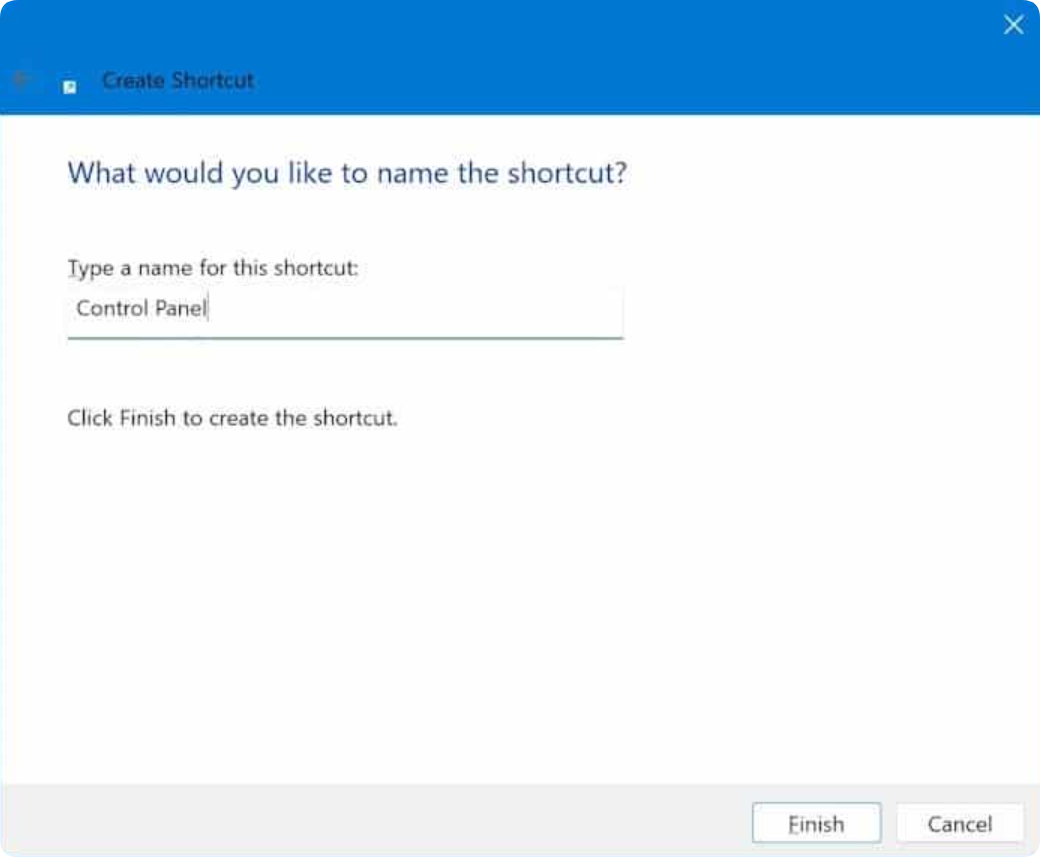
Step 3: Finally, type Control Panel in the box before clicking the Finish button to create the Control Panel shortcut icon on the Windows 11 desktop.
Method 2 of 2
Add Control Panel to the desktop via Control Panel in Windows 11
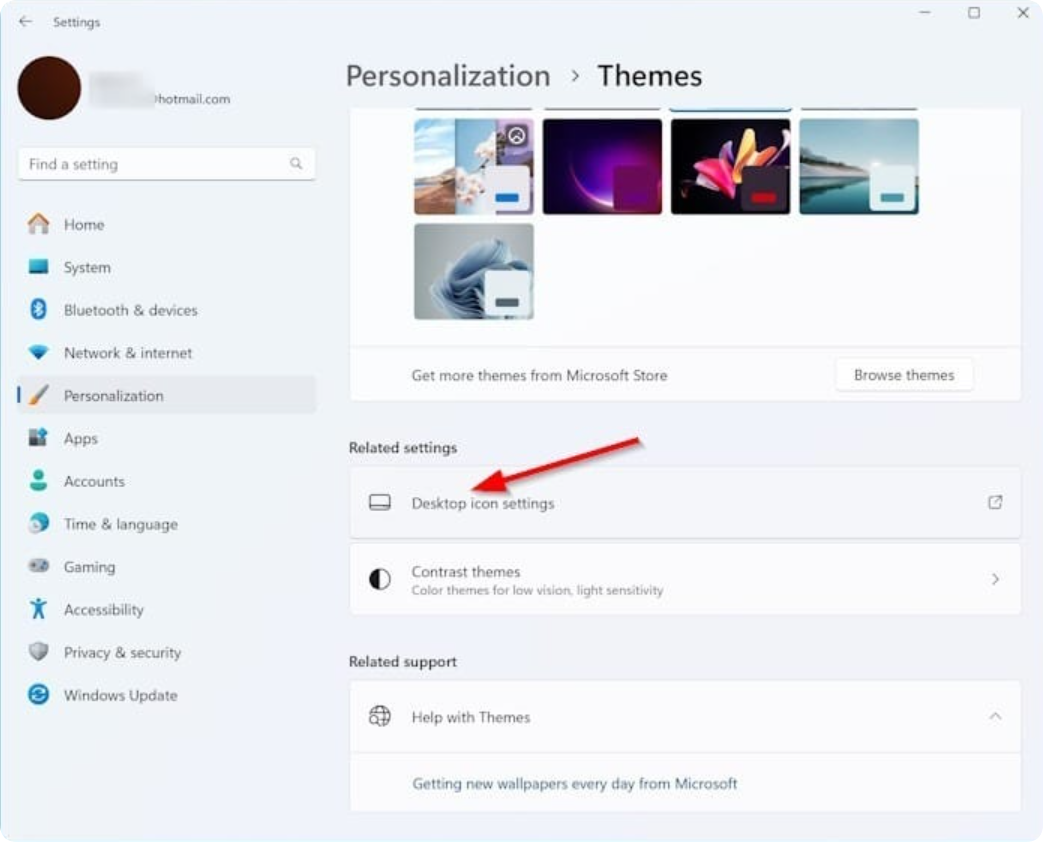
Step 1: Open the Windows 11 Settings app. Navigate to Personalization > Themes page.
Step 2: In the Related settings page, click the Desktop icon settings link to open the same.
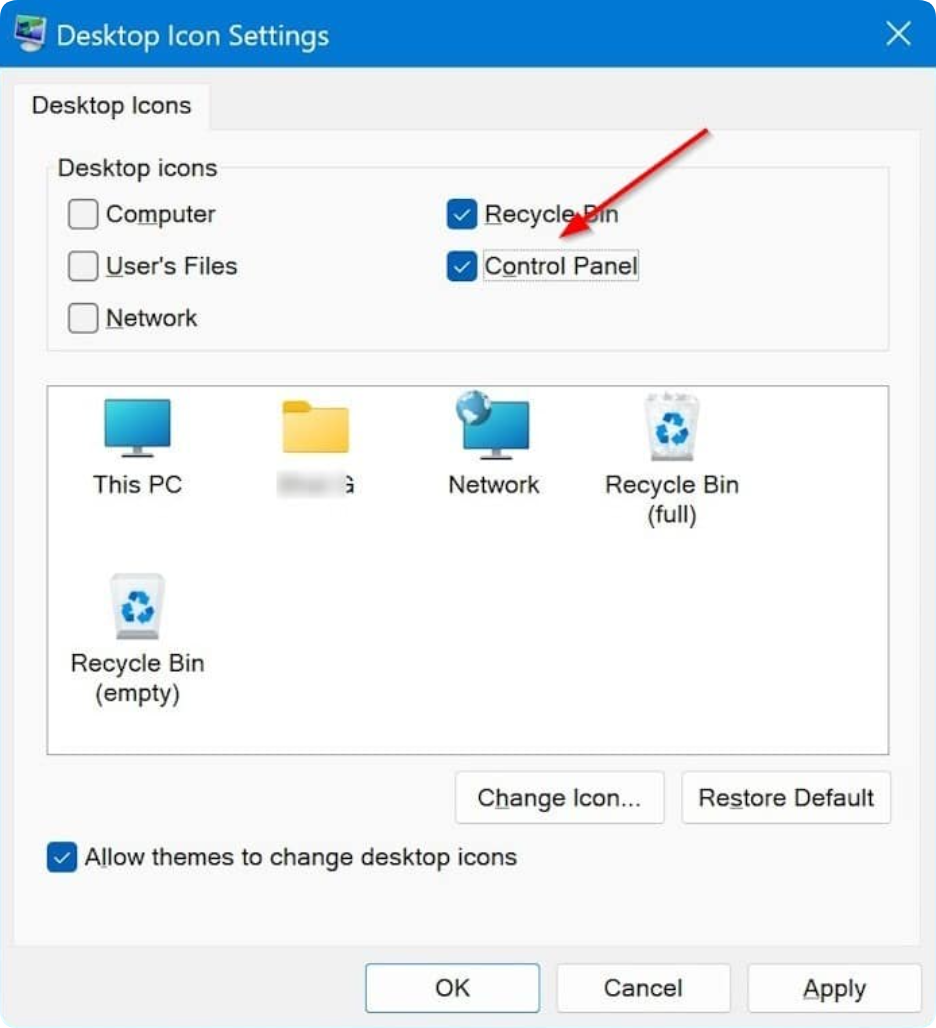
Step 3: Here, select the Control Panel checkbox and then click the Apply button to immediately add the Control Panel icon to your Windows 11 desktop. As you can see, the same dialog also lets you add This PC and Recycle Bin icons to desktop.
Contact Information:
For better communication, you can reach us via:
- Mobile & WhatsApp: +86 13437848416
- WhatsApp: Click here to contact us
- You can contact us via WhatsApp to let us know your needs, or leave your comments, and we will reply to your messages promptly.