DP-SL04 Key Box — FAQ Summary – Technical Post

Troubleshooting & Setup Guide for DP-SL04 Key Box
If you encounter any issues while using the DP-SL04 Key Box, please read this guide carefully. This is especially important for users with computers featuring built-in network cards, as IP configuration conflicts are a common occurrence.
Note on Quality Assurance: All functions of the DP-SL04 Key Box have been fully verified. Our hardware is manufactured by a publicly listed company, and every unit undergoes rigorous factory testing. If you run into problems, please do not assume the hardware is faulty. Instead, follow these instructions step-by-step; this guide resolves over 99% of common issues.
Special Disclaimer: While the DP-SL04 offers a wide range of features, its operation is simpler than most standard controllers. Do not be intimidated by its versatility.
-
For basic lighting control: Simply configure your network card IP and set the Subnet Mask to 255.255.255.0.
-
For professional software control: You may not even need to set an IP address—simply plug the device into your computer via USB for plug-and-play use.
We provide this detailed documentation in the spirit of transparency, aiming to help users understand both the underlying principles and the practical operations of our technology.
- First-time setup for DP-SL04 Key Box: How to configure the USB Network Adapter IP
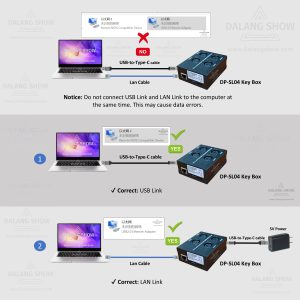
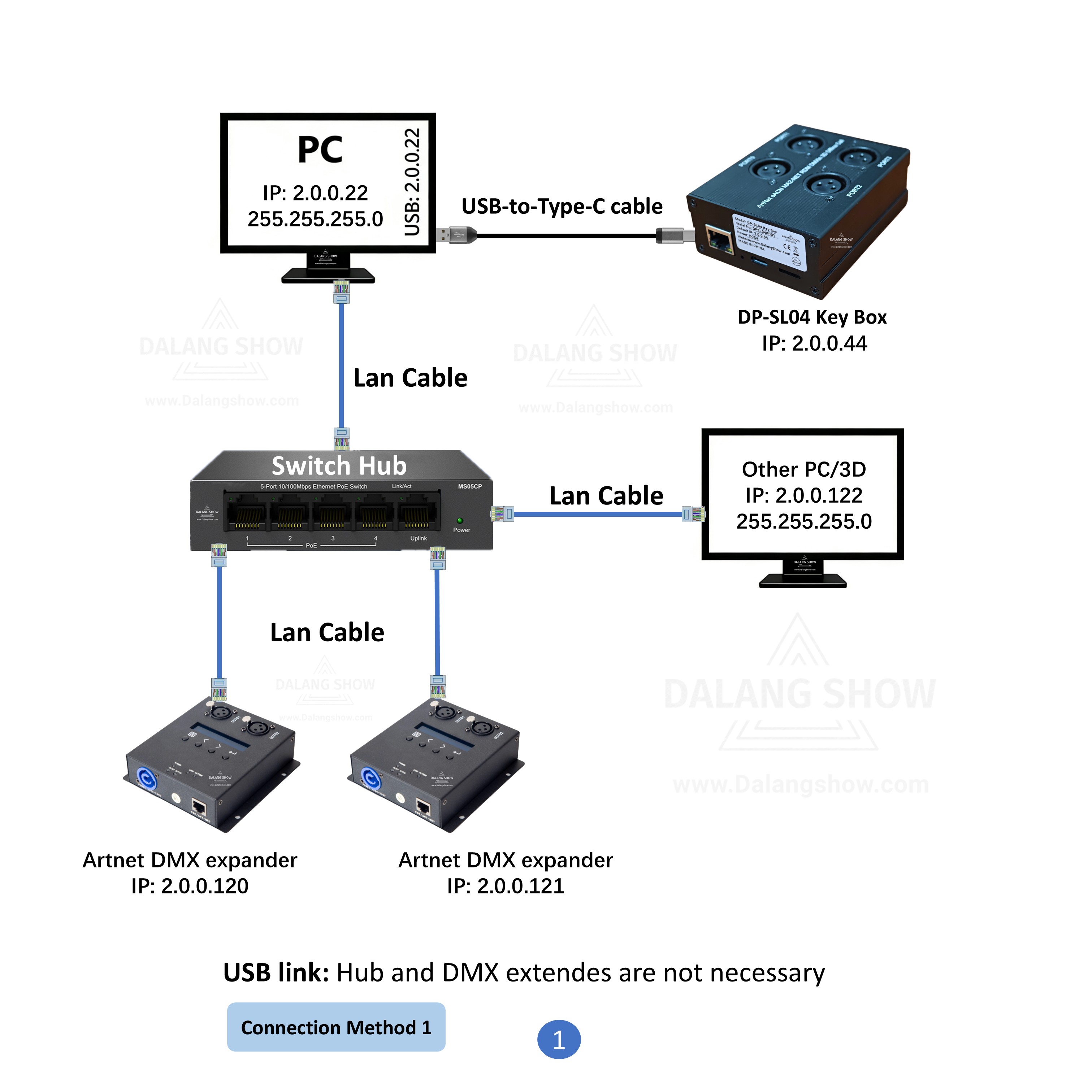
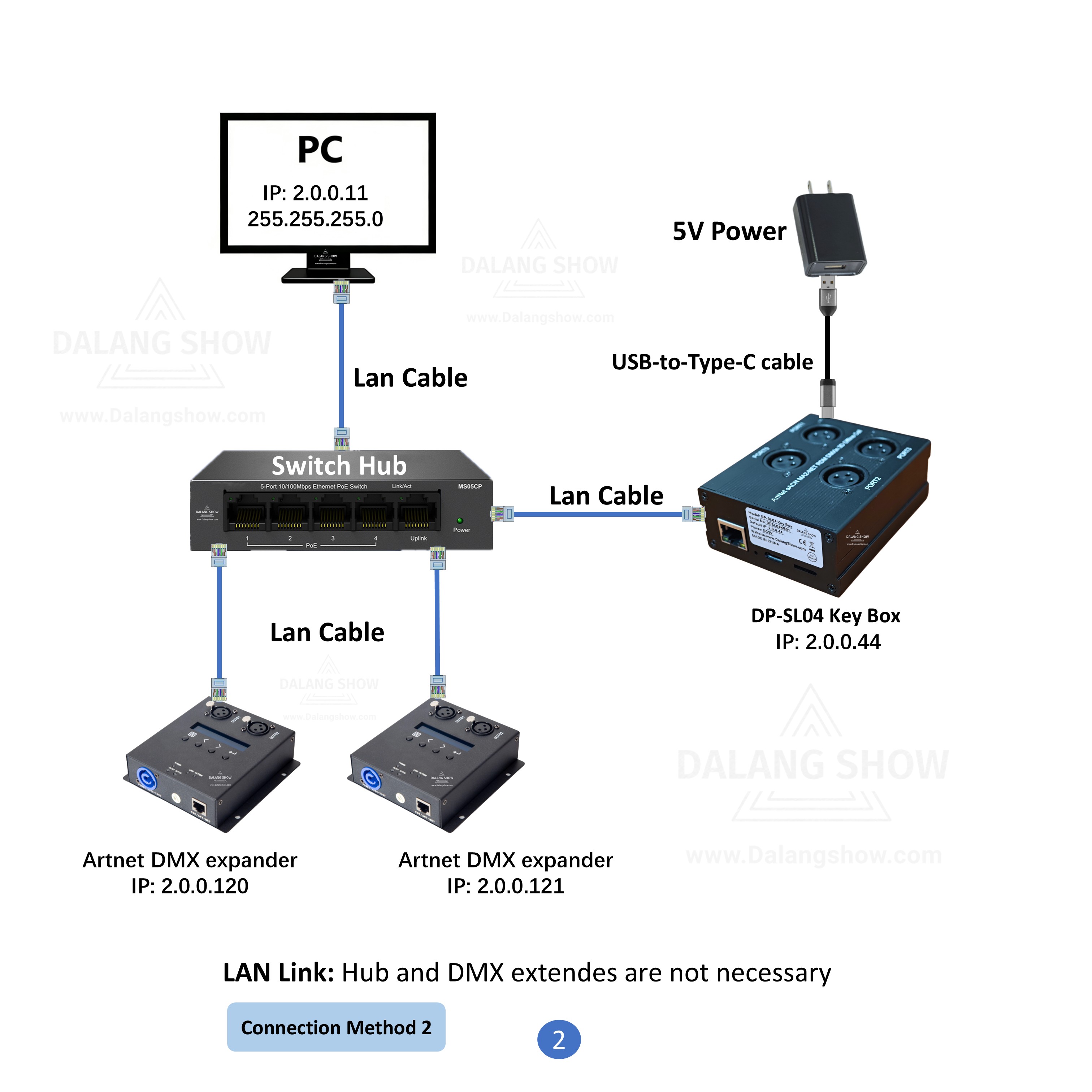
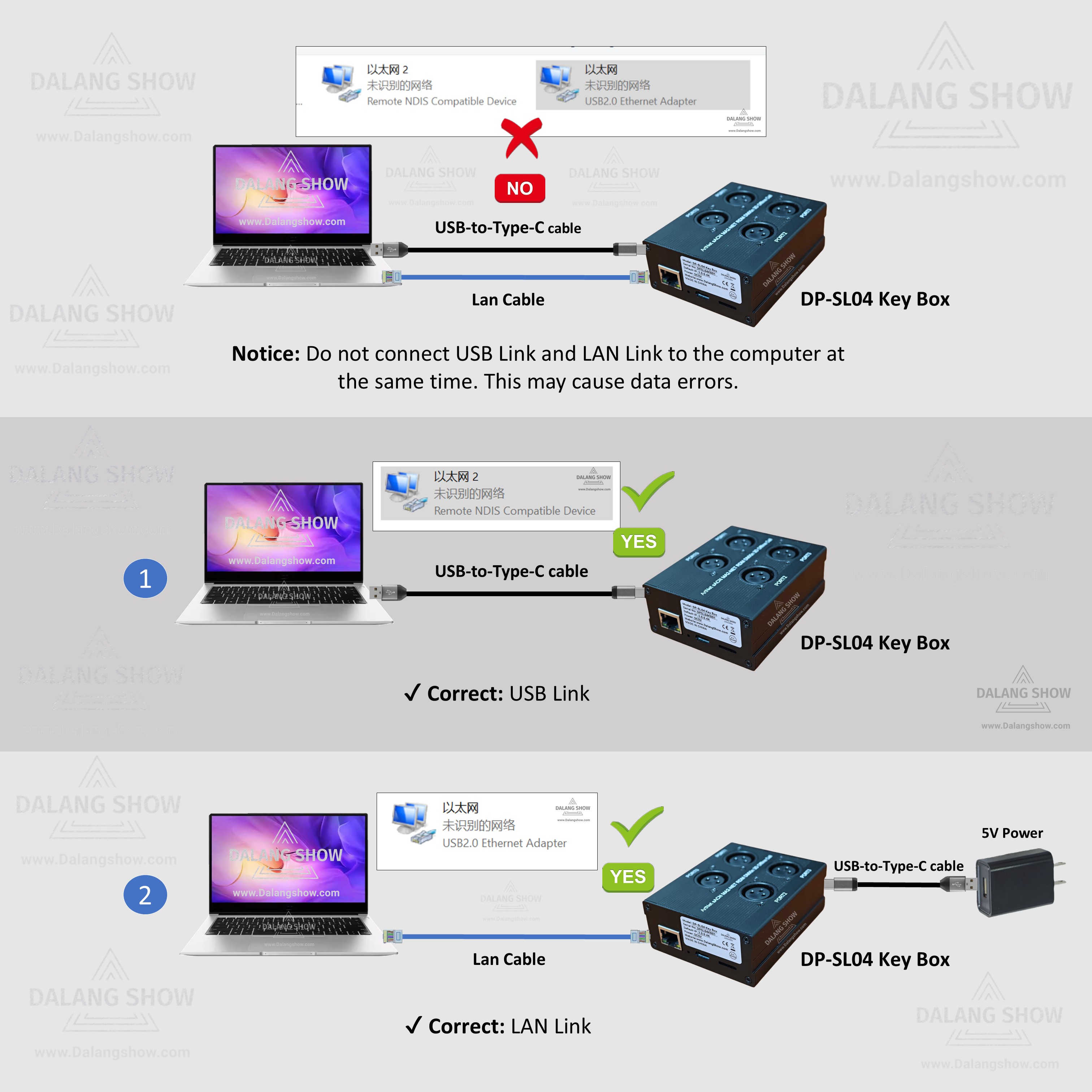
Diagrams illustrating two connection methods
- DP-SL04 Key Box -Make MA3 Fake Key V1.8.exe User Guide
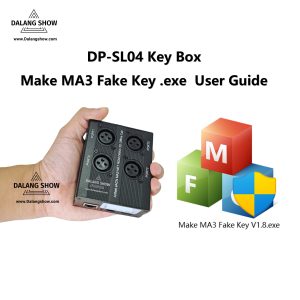
- DP-SL04 Key Box – grandMA3 onPC plug-in Download
- DP-SL04 Key Box – grandMA2 onPC plug-in Download
DP-SL04 Key Box Technical Theory Q&A Guide
1. Hardware Compatibility: Can a Low-Speed Network Card Connect to a High-Speed Switch?
Question: The DP-SL04 Key Box uses a 10M LAN / 12M USB network interface. Can it be connected to a 100M or 1000M (Gigabit) switch or router?
Answer: Absolutely. Ethernet standards feature a robust Auto-Negotiation mechanism. When the DP-SL04 is connected to a Gigabit (1000M) switch, the Physical Layer (PHY) chip of the network card “negotiates” with the switch to determine the highest mutually supported speed, which in this case will be 10M.
Tip: Although DMX data traffic is relatively small and 10M bandwidth is more than sufficient, this backward compatibility ensures that the hardware functions correctly in any modern network environment.
2. Communication Modes: What are the differences between Broadcast, Unicast, and Multicast?
In lighting protocols (such as Art-Net and sACN), the data transmission method determines network load and efficiency:
-
Broadcast: The host sends data packets to the entire network without specifying a recipient. Every device on the same subnet receives the data.
-
Application: The default mode for Art-Net; simple to set up but can lead to network congestion in large systems.
-
-
Unicast: The host sends data “one-to-one” to a specific target device, without disturbing others.
-
Application: The most efficient mode, ideal for large-scale, high-density systems.
-
-
Multicast: Devices must first “join a multicast group.” Only devices in that specific group receive the data—similar to a group chat.
-
Application: The core transmission method for the sACN (E1.31) protocol.
-
MA Console Tip: MA-Net primarily uses Multicast. When sending Art-Net, MA defaults to Broadcast but can be manually configured to Unicast for better performance.
3. Data Transmission Principles: IP Address and MTU
Question: How is network data transmitted, and why is an IP address required?
Answer: Network data is encapsulated into small “packets” for sending and receiving.
-
Packet Size Limit: The size of a single packet typically cannot exceed 1500 bytes (MTU).
-
Addressing: Packets are routed using a MAC Address (Hardware ID) + IP Address (Logical Address) + Port Number (Function Entry Point).
-
Connection Essentials:
-
Uniqueness: Within the same network, the PC and the DP-SL04 key box must have different IP addresses to avoid an “IP Conflict.”
-
Same Subnet: Both IPs must be in the same subnet (e.g., 2.0.0.x) to communicate.
-
-
Physical Connection: You can connect via USB (the key box is recognized as a USB network card) or via an Ethernet cable (connecting the LAN port to the PC).
4. IP Allocation: Static IP vs. DHCP
Question: Why is it usually recommended to set a Static IP for lighting equipment instead of using DHCP?
Answer:
-
DHCP (Dynamic Allocation): Requires a “Router” or “DHCP Server” in the network to automatically assign IPs (similar to how a phone connects to Wi-Fi).
-
Static IP: In professional lighting networks consisting only of “Switches,” there is no server to assign IPs. Therefore, you must manually assign a unique Static IP to every console and node.
What is 169.254.x.x? If a PC is set to “Obtain an IP automatically” but no router is present, Windows assigns a self-assigned address starting with 169.254. This is for internal PC use only and usually fails to communicate with external lighting hardware. Core Principle: For system stability, always manually set Static IPs for all professional lighting network components.
5. Special Address: What is 127.0.0.1 used for?
Question: What does the commonly seen 127.0.0.1 represent?
Answer: This is the Loopback Address. Think of it as the computer’s “internal monologue.”
-
Scenario: If you are running MA console software and a visualizer (like Wysiwyg or GrandMA3D) on the same computer, the data doesn’t need to travel through a physical cable. Instead, it is transmitted internally via 127.0.0.1.
-
Benefit: This allows different lighting software on the same machine to exchange data instantly without being affected by physical network hardware status.
6. Understanding Art-Net: Art-Net IP vs. Network Card IP
Q: What is Art-Net? What is the difference between an Art-Net IP and a regular Network Card IP?
A: Art-Net is a free-of-charge lighting protocol encapsulated within UDP packets.
-
Standard Segments: The protocol specifies 2.x.x.x (Primary) and 10.x.x.x (Secondary) as the standard subnets. MA2 defaults to the 2-net, while MA3 defaults to the 10-net.
-
IP Logic: An Art-Net IP is a virtual address calculated from the device’s MAC address (OEM code + MAC tail). While it was designed for “plug-and-play,” it is often confusing.
-
Key Principle: For users, simply ensure your Network Card IP is manually set to a static address in the correct range (e.g.,
2.x.x.x) to ensure the successful transmission of UDP packets.
7. Multi-NIC Confusion: Why MA2 Requires Careful Planning
Q: Why does having multiple network cards (WiFi, Internal, Virtual) cause data errors in MA2?
A: This is due to Interface Priority. Computers usually prioritize internal network cards over external USB network cards.
-
The Problem: MA2 might send Art-Net data through your internal card instead of the USB interface connected to the DP-SL04 Key Box, resulting in no DMX output or failed parameter unlocking.
-
Solution for DP-SL04 (USB Mode):
-
Disable internal/virtual network cards that might conflict.
-
Set the USB NIC IP to
2.0.0.11(Mask :255.255.255.0). -
In MA2, set Station IP to 127.0.0.1.
-
If using the built-in LAN port instead of USB, you must set the Internal NIC to a
2.x.x.xIP.
-
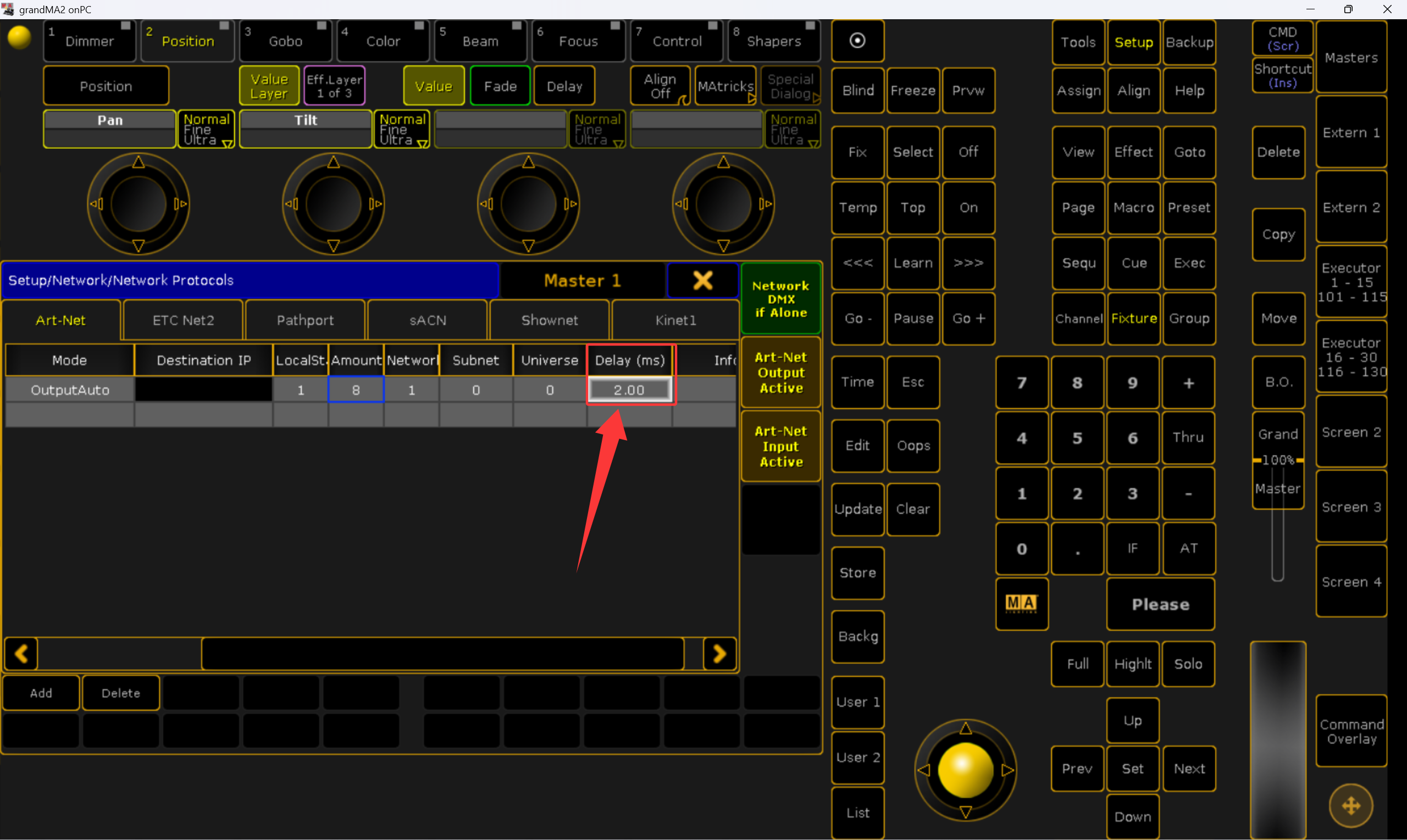
8. MA2 Art-Net Delay: Why 1ms or higher is recommended?
Question: Why should the Delay be set to at least 1ms in the MA2 Art-Net configuration?
Answer: The standard DMX512 refresh rate is 44Hz. In MA2, if the interval between packets is set to 0ms, the transmission speed may exceed the physical limit of the DMX512 protocol, causing hardware processing overflows and occasional light flickering.
-
Data Buffering: A 0ms delay sends packets without any interval, which can overwhelm the DMX hardware’s buffer.
-
Setting Recommendation: Setting a 1ms delay provides the CPU with necessary processing time and prevents data congestion.
-
If 8 universes are set to 1ms, the total refresh rate is $1000 / (8 \times 1ms) = 125Hz$.
-
If set to 2ms, the rate is $1000 / (8 \times 2ms) = 62.5Hz$, which is already close to the standard DMX limit.
-
-
Special Note (Oct 24, 2025): <font color=”red”>For large-scale systems with many universes (>8) using the LAN port</font>, if a 1ms delay causes lag or laggy response, you may test with 0ms based on real-world visual performance, especially if the Session IP is not 127.0.0.1.
MA Official Manual Interpretation (Regarding DP-SL04 Key Box)
According to the MA Official Manual, there are three critical points to observe when using the DP-SL04 Key Box:
-
Slow Network Optimization: The official manual explicitly states: <font color=”red”>”Add a number here… This might be necessary in slow networks. Only used for Art-Net output.”</font> Since the DP-SL04 Key Box operates on a 10M/12M network architecture, it is technically a “slow network” device. While the bandwidth is sufficient, a delay ensures the hardware can process the incoming stream stably.
-
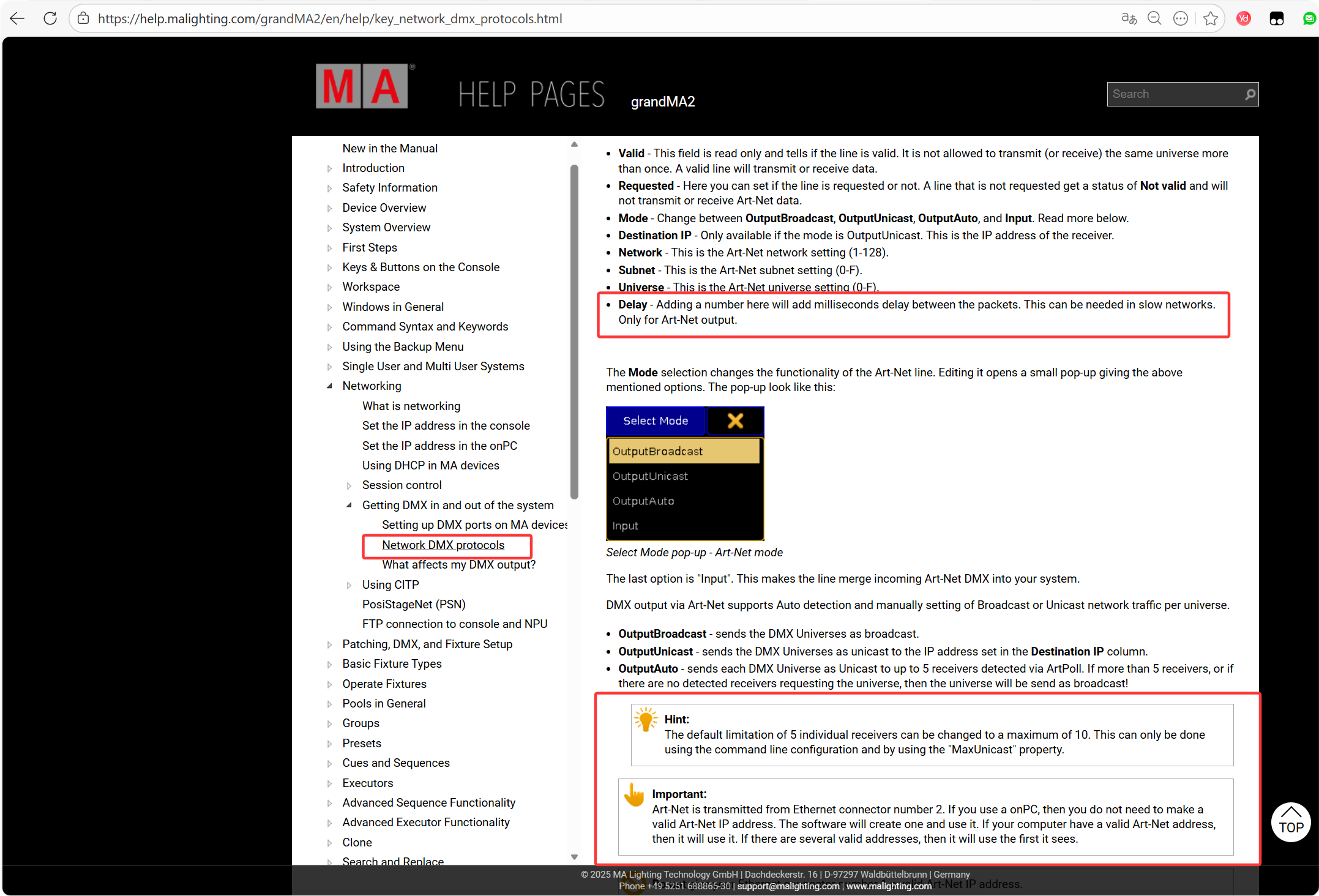
Internal NIC (Adapter 1) Conflict: The manual clearly states: <font color=”red”>”Do not set the internal network card to a valid Art-Net IP address (i.e., avoid the 2.x.x.x range).”</font>
-
The Conflict: If you connect via DP-SL04 Key Box USB but your internal NIC is also set to a 2.x.x.x IP, the internal card (due to higher priority) will intercept all outgoing Art-Net data. Consequently, no data will reach the USB box.
-
Correct Usage: Only set the internal NIC to 2.x.x.x if you are connecting via a network cable directly to the DP-SL04 Key Box LAN port.
-
-
Why set Session IP to 127.0.0.1? Under the “Important” notice in the official help files: <font color=”darkgreen”>”If you are using onPC, you do not need to create a valid Art-Net IP address…”</font>
-
Therefore, setting the Session IP to 127.0.0.1 is the most reliable method for onPC users. It bypasses physical network card priority issues and ensures data is routed correctly to the intended output interface.
-
9. MA2 Successfully Cracked and Art-Net Activated, but still no output?
Question: The parameters are unlocked and the Art-Net active button is on, but the DP-SL04 Key Box still shows no DMX output. What should I do?
Answer: If physical connections and IP settings are correct, this is usually caused by residual output routing in the Show file or a Session IP change. Use this “final trick” to force the activation:
-
Prerequisite: Ensure the Session IP is set to 127.0.0.1 in
MA Network Control. -
The Forced Command: Enter the following command in the MA2 CMD bar and press Enter:
Edit DmxUniverse 1 -
What happens: When the Universe editor window pops up, the MA2 engine is forced to re-scan and refresh the output routing for that universe.
-
Alternative: Simply opening the Universe Pool window in your layout can also trigger MA to re-verify the output status.
Important Tips:
-
Save your Show: Once the output is successfully restored, save the Show file and restart MA2 to lock in the configuration.
-
Root Cause: This issue often occurs when loading old Show files containing legacy output configurations that conflict with your current setup.
-
Session IP Changes: Switching the Session IP frequently can also lead to this “logic hang” where the software fails to route data to the Art-Net engine.
10. How to Set the USB NIC IP for the First-Time Use of DP-SL04 Key Box?
Answer: When you connect the DP-SL04 Key Box via USB, your computer recognizes it as an external network adapter. You must manually assign a static IP to this adapter.
-
Detailed Guide: Please click here to view the [Step-by-Step Graphical Guide for IP Setup].
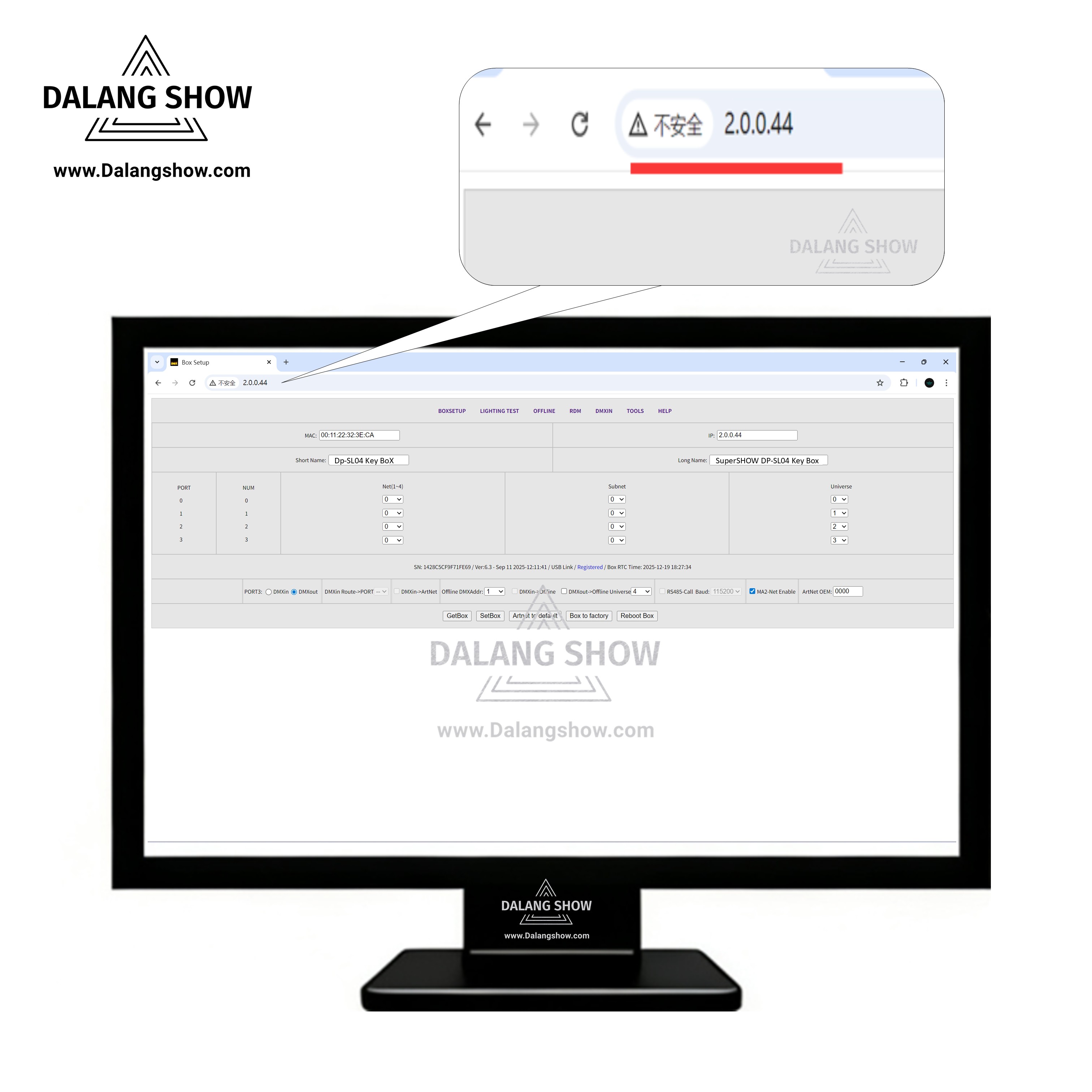
11. Troubleshooting: Cannot Access the DP-SL04 Key Box WebAPP via Browser
Question: The IP is configured correctly and I can Ping the box, but the WebAPP fails to load or functions abnormally (e.g., faders won’t move, characters are garbled).
Answer: The HTTP server in the DP-SL04 Key Box is independently developed and highly optimized for speed. Because it lacks complex third-party libraries, it may encounter issues with stored browser data.
-
Root Causes:
-
Browser Cache Conflict: Long-term browser usage stores data that may conflict with the box’s minimalist HTTP code.
-
HTTPS Redirection: Browsers often force an
https://connection. Since the box uses standardhttp://(Port 80), the encrypted 443 port request will fail.
-
-
Step-by-Step Solutions:
-
Clear Browser Cache & Cookies: This resolves most access issues. Go to your browser settings and clear browsing data, or try an alternative browser.
-
Address the HTTPS Issue: If the address bar adds an
stohttp, manually delete it. You can also click the address bar and press Enter multiple times to force the browser to drop the SSL 443 connection and switch to 80. -
Manage Active Connections: The box has limited shared memory for web services. If you have multiple tabs open for the WebAPP, it keeps the connections active. Please close the webpage when not in use.
-
-
How to Clear Data:
Settings -> Privacy, Search, and Services -> Clear Browsing Data -> Choose what to clear -> Clear Now
14. Precautions for Switching Between Different DMX Control Softwares
Question: After using other DMX control softwares with the DP-SL04 Key Box, what should I notice before switching back to MA2?
Answer: The DP-SL04 Key Box is compatible with many professional DMX applications. However, its internal logic adapts to the software currently in use.
-
Protocol Reset: When you run other DMX software using our plugins, the hardware identifies that it is not in an “MA onPC” environment. To optimize performance and save CPU processing power, the box will temporarily disable the MA2-Net protocol.
-
The Solution: <font color=”red”>If you have run other DMX software and now wish to use MA2 onPC, you MUST restart the box.</font> Unplug and replug the power to allow the box to re-initialize and reactivate the MA2-Net protocol.
-
Core Rule: Always restart the hardware when switching from third-party DMX software back to MA2 onPC to ensure the protocol is restored.
15. Does the MA Software Require a Plugin?
Question: When do I need to copy the winusb.dll plugin to the MA2 directory? What if the 131,072 parameters are not unlocking?
Answer: It depends on the number of channels you require:
-
Native Mode (No Plugin): If you only need to control lights with standard parameters, the DP-SL04 Key Box natively supports MA2 with 4,096 channels (8 Universes) unlocked.
-
Expanded Mode (With Plugin): To unlock 256 Universes (131,072 parameters), you must copy the
winusb.dllplugin file into the MA2 installation directory.
<font color=”red”>Common Reasons for Unlock Failure:</font>
-
Antivirus Interference: Since cracking plugins often use low-level system techniques, they are easily flagged as false positives. Disable your antivirus or add
winusb.dllto the whitelist, then re-copy the file into the directory. -
Missing File: Antivirus software may scan the disk in the background and delete the file later. Always verify that
winusb.dllis still present in the MA2 folder. -
Multi-NIC Interference: <font color=”darkgreen”>This is the most frequent issue.</font> If the plugin is present but parameters remain locked, your internal network card is likely intercepting the detection data sent from MA to the box. Refer to Point 7 to disable unnecessary network cards or adjust IP settings.
16. How to Use Other Professional DMX Softwares
Question: How do I configure the DP-SL04 Key Box to work with other professional lighting softwares?
Answer: The DP-SL04 Key Box is perhaps the most versatile interface on the market, supporting a vast array of professional DMX software via a simple plugin system.
-
Usage Method: 1. Visit the DP-SL04 Official Download Area. 2. Download the specific DLL plugin corresponding to your software. 3. Copy the DLL file into the installation/root directory of the professional software.
-
Plug and Play: Once the plugin is in place, you do not need to perform any complex hardware searches or configuration within the software; it will recognize the DP-SL04 Key Box automatically.
-
Important Notes:
-
Version Matching: Some plugins are version-specific, while others are universal. <font color=”red”>Read the “readme” file in each directory carefully</font> to ensure you are using the correct software version.
-
Whitelisting: Just like with MA2, ensure your antivirus does not delete the plugin from the third-party software’s folder.
-
[Download Link for Plugins and Firmware]
17. DP-SL04 Key Box was working fine, but now I can’t Ping it or browse the WebAPP.
Question: The DP-SL04 Key Box has been working normally, but suddenly it cannot be Pinged, the WebAPP won’t load, and the DMX software cannot output data.
Answer: In most cases (90% or more), the Static IP assigned to your PC’s network card has been reset by Windows.
-
Analysis: We have observed that if network adapters are frequently swapped (e.g., re-plugging the USB card or switching between WiFi and LAN), Windows may automatically clear the static IP and <font color=”red”>revert to DHCP (Obtain IP automatically)</font>. This is a Windows OS behavior.
-
Solution: <font color=”darkgreen”>Re-assign a Static IP to your computer’s network card</font> that is connected to the DP-SL04 Key Box.
18. What if I forget the DP-SL04 Key Box IP? Can I reset it to 2.0.0.44?
Question: If I forget the IP of the DP-SL04 Key Box, how can I find it or restore it to the factory default IP (2.0.0.44)?
Answer: You can use the dedicated software SL04_ToFactory to find or reset the DP-SL04 Key Box, regardless of what IP segment it was previously set to.
-
Factory Default: IP = 2.0.0.44
-
Method:
-
Set PC IP: Set your computer’s network card (USB/LAN) to a static IP: 2.0.0.22 (The last digit can be any number except 44). Do not worry about the current IP of the DP-SL04 Key Box.
-
Run Software: Open the SL04_ToFactory tool.
-
Reset: Click the [ToFactory] button. The DP-SL04 Key Box will automatically restore to factory defaults.
-
SL04_ToFactory Download Link:

19. Where is the download link for the DP-SL04 Key Box software?
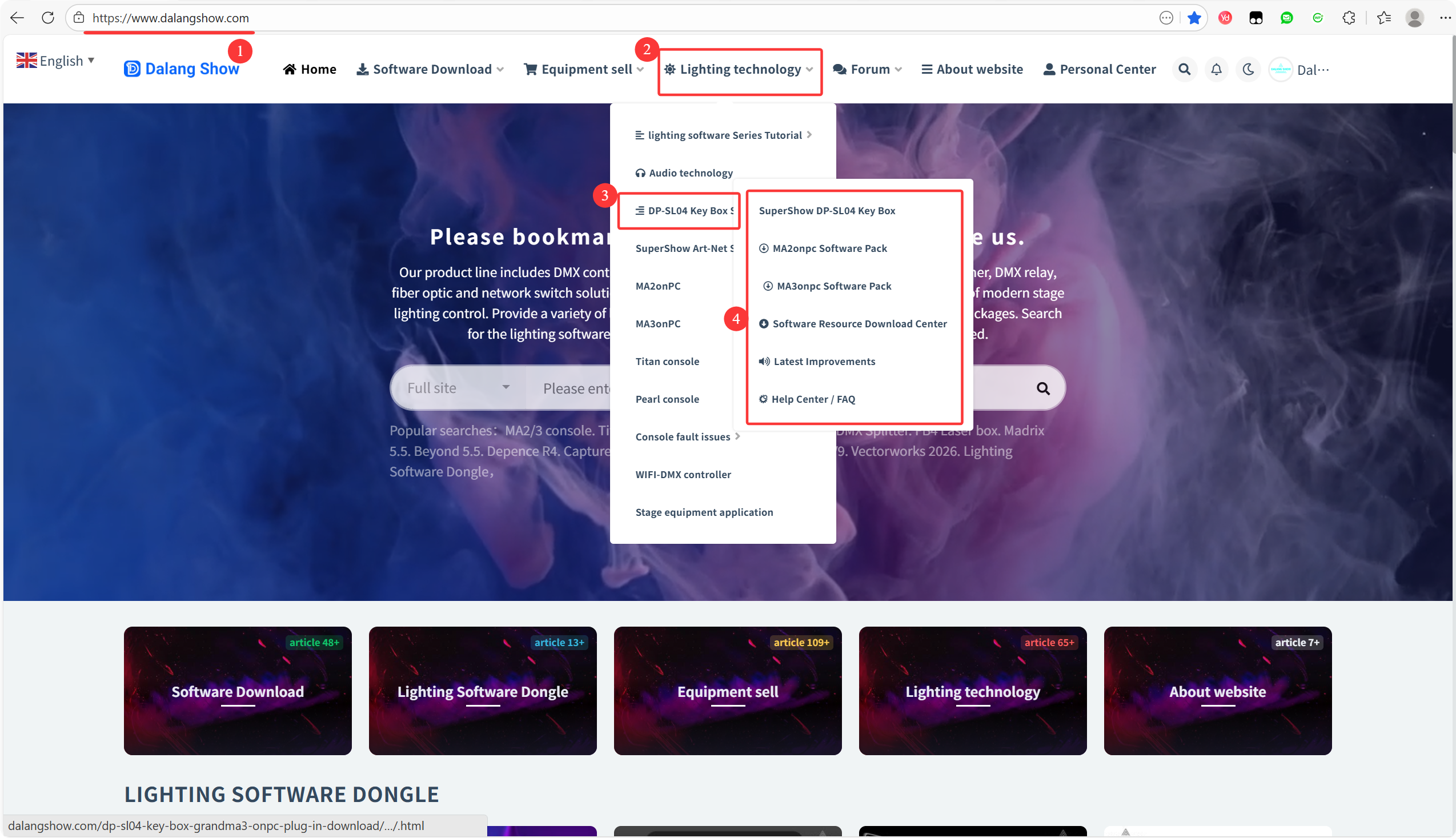
Answer: You can access all necessary drivers, plugins, and tools for the DP-SL04 Key Box at our official website:
-
Official Website: www.dalangshow.com
-
Downloads Include:
winusb.dllplugins for various DMX suites, firmware updates, and the IP recovery utility.
20. Bug Feedback and Technical Support
Answer: If you encounter any bugs or have suggestions while using the DP-SL04 Key Box, please let us know. Clear communication helps us provide better updates.
-
Feedback Guidelines: <font color=”red”>Please provide the following details in your report:</font>
-
Software Version: Which DMX control software and version are you using?
-
Connection Type: Are you using USB NIC mode or the LAN port?
-
OS Version: Your computer’s operating system (e.g., Windows 10/11).
-
Issue Description: A clear description of the problem (screenshots or short videos are highly recommended).
-
-
Contact: Please send your feedback to our website’s After-Sales Support team.
24. How to determine if the DP-SL04 Key Box is functioning correctly?
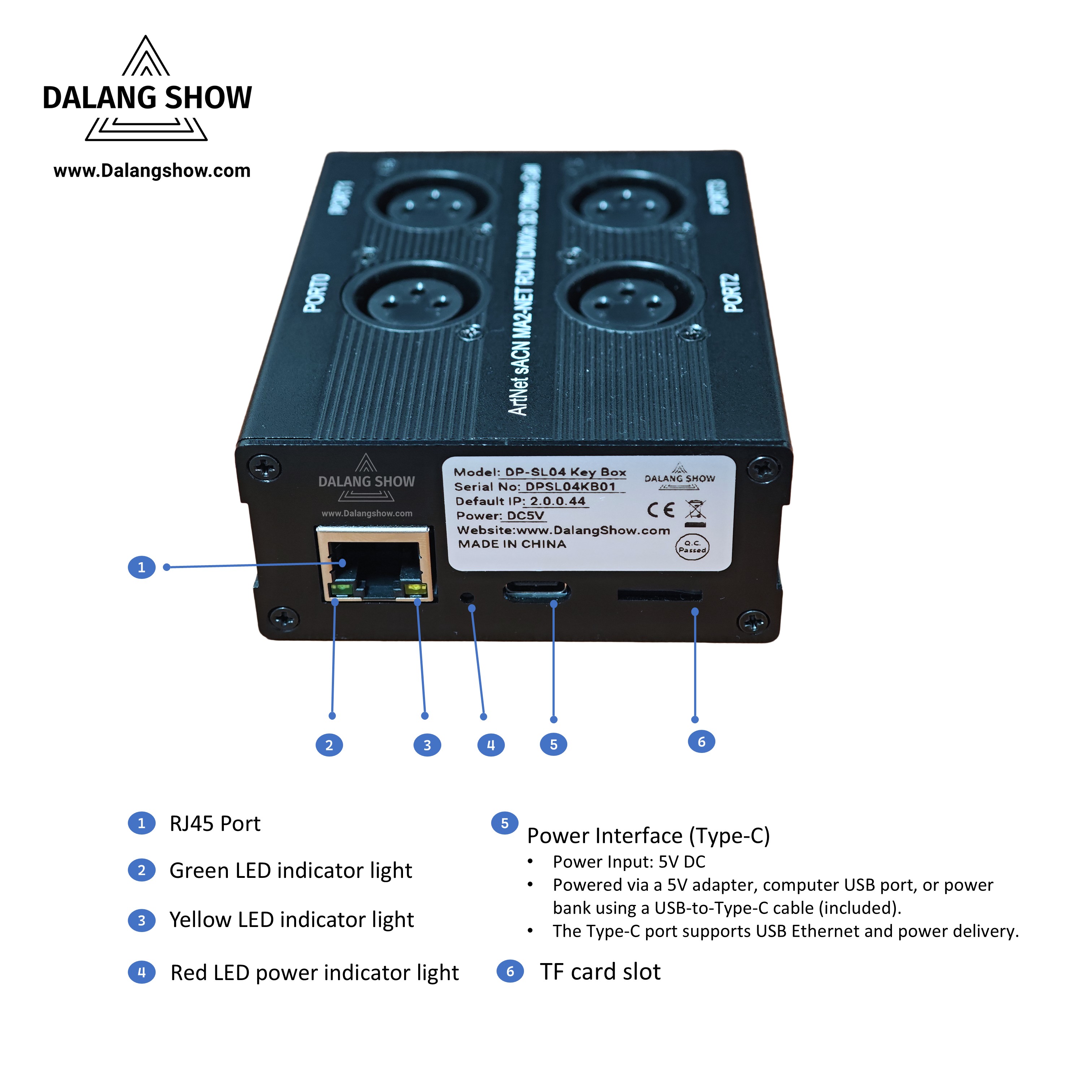
Answer: You can quickly verify the status by observing the Red LED indicator:
-
Normal Heartbeat: If the red light flashes <font color=”darkgreen”>once per second (1Hz)</font>, the DP-SL04 Key Box system is running correctly and the hardware is in good condition.
LED Indicator Status Table
| Number | Green LED | Yellow LED | Red LED | MEMO |
| 1 | No | No | No | Power Off |
| 2 | On Then Off | On Then Off | On Then Flash | Power On |
| 3 | Have Data Flash | Flash | Flash | USB Link PC (USB Virtual Network Card) |
| 4 | Have Data Flash | ON | Flash | USB Link Power / LAN Link Box |
| 5 | Off | Off | Flash | USB Link Power / No LAN Link Box |
| 6 | Flash | Flash | Flash | Play DMX file or Catch DMX file |
| 7 | — | — | No Flash | Box have problem, needs to be returned to factory for repair |
25. Solutions for Browser Blocking Plugin Downloads
Answer: * The Reason: We provide raw .dll and .exe files for direct use instead of compressed archives (rar/zip). Browsers like Chrome or Edge often flag these file types for security review.
-
The Solution: Use Edge or Google Chrome. When blocked, choose “Keep” or “Download anyway.” <font color=”red”>Rest assured, all files on our official site are safe and tested.</font>
26. Troubleshooting “Could not save IP settings” in Windows
Answer: If Windows shows “Could not save IP settings. Check one or more settings and try again,” please check the following:
-
Windows 10: * The second box asks for “Subnet Prefix Length”, not the mask.
-
Change
255.255.255.0to <font color=”red”>24</font>. (8=255.0.0.0, 16=255.255.0.0).
-
-
Windows 11: * The second box asks for the “Subnet Mask”. Enter
255.255.255.0directly. -
IP Conflict/Cache: * The IP might be reserved by a disconnected device in the registry.
-
Fix: Restart your PC or use a different IP address.
-
-
DNS Requirement: If it still fails, try entering a placeholder DNS like
8.8.8.8to satisfy the system validation.
-
Final Force Reset: Open CMD as Administrator and run:
ipconfig/releaseipconfig/renewnetsh int ip reset
-
Pro Tip: Use
ipconfig /allin CMD to view all network adapter details.
27. Patching Errors: Universe vs. Physical Port Mismatch
Question: MA2 is unlocked and the WebAPP can control lights, but the MA onPC console cannot. Why?
Answer: This is a very high-frequency error. Please pay close attention to the mapping between the software Universe and the hardware Physical PORT.
-
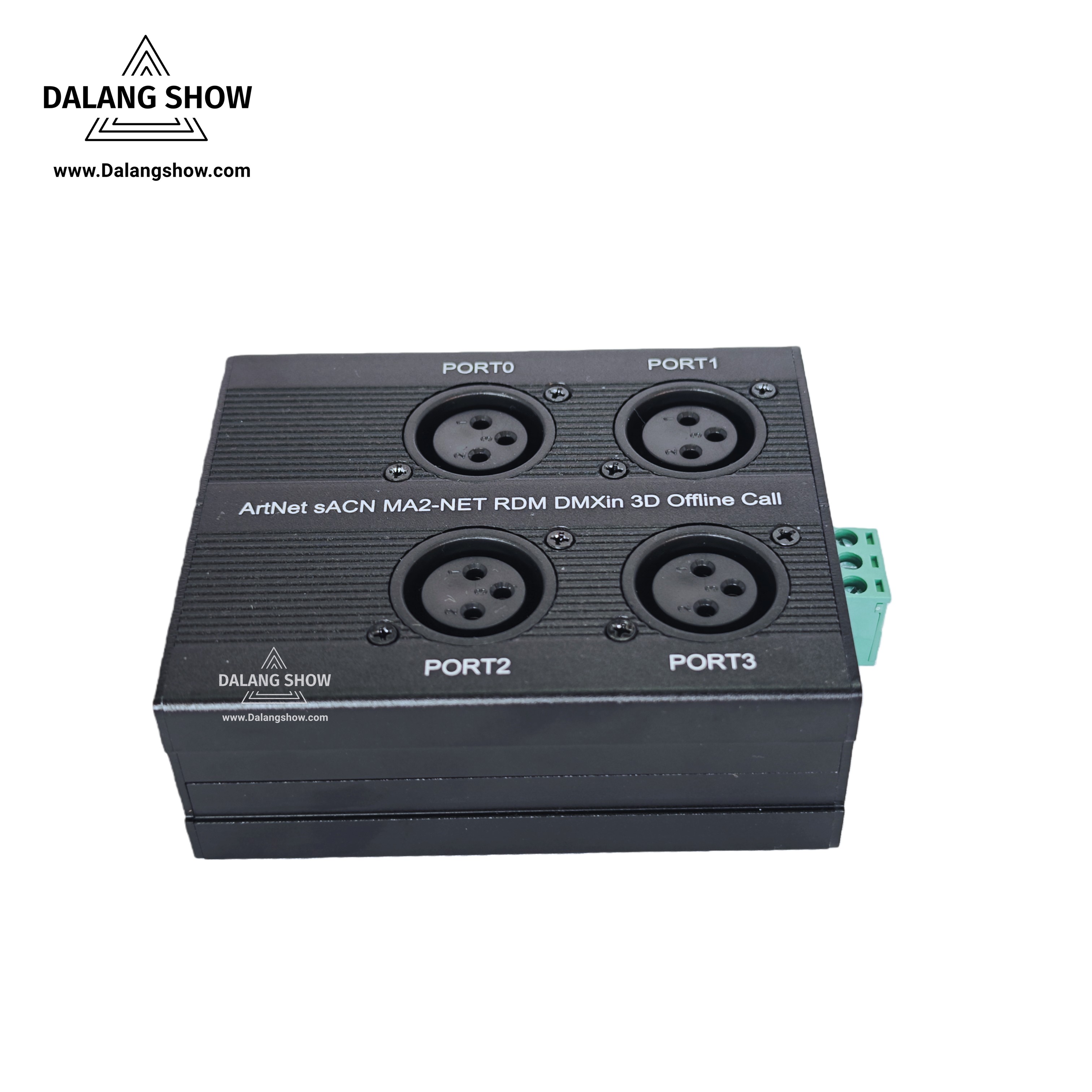
Typical Case: Many users patch fixtures to Universe 1 in MA2, but plug the DMX cable into PORT 2 of the DP-SL04 Key Box. In this case, the lights will not respond.
-
Solution: The DP-SL04 Key Box supports 4 output ports (0/1/2/3). When testing, please verify:
-
PORT 0 corresponds to Universe 1 (or your designated start universe).
-
PORT 1 corresponds to Universe 2
- PORT 2 corresponds to Universe 3
-
PORT 3 corresponds to Universe 4, and so on.
-
<font color=”red”>If your cable is plugged into PORT 2, ensure the fixtures in the software are also patched to the corresponding Universe.</font> Moving the cable to PORT 0 often solves the issue immediately.
-
28. RDM Functionality Instructions
Answer: The RDM (Remote Device Management) features of the DP-SL04 Key Box are built directly into the WebAPP.
-
Operation: All RDM tasks (such as changing DMX addresses or identifying fixtures) are performed within the WebAPP interface.
-
Limitations: <font color=”red”>You cannot use 3rd-party RDM software or MA2 to control the hardware’s RDM functions.</font> The WebAPP provides the most intuitive and direct “click-and-operate” interface, making it the only supported way to manage RDM.
29. Offline Playlist: AutoPlay and Loop Settings
Answer: You can easily set up standalone playback via the DP-SL04 Key Box WebAPP Offline page.
-
A. Setting Up AutoPlay :
-
Record & Name: Capture DMX files for each show (supports Chinese names).
-
Order: Drag and drop files to set the playback sequence, then click “My Offline Play List” to save it to the DP-SL04 Key Box.
-
Activate: Check the [AutoPlay] box. The DP-SL04 Key Box will automatically run this list on the next boot.
-
-
B. Loop Count Settings:
-
<font color=”darkgreen”>Crucial Sequence: Select the Loop count FIRST, then click AutoPlay.</font>
-
Every time you change the loop count, you must click the AutoPlay button again to save the setting into the AutoPlay configuration file.
-
Max Loops: Supports up to 6000 times (effectively continuous playback).
-
30. DMX Recording: Port Definition and Routing
Answer: The DP-SL04 Key Box allows you to define which ports to record.
-
Port Definition: Simply check the desired PORTs in the WebAPP.
-
Status Display: An Output status of [1,1,1,1] means all 4 ports are recorded; [1,1,0,0] means only PORT 0 and PORT 1 are recorded.
-
-
DMXin & Routing:
-
You can record external DMX512 signals from physical consoles.
-
Routing Function: If PORT 3 is needed for RS485, you can route the DMXin signal to other ports (e.g., routing to “A” sends the signal to ports 0, 1, and 2).
-
Note: If routing is not enabled (“–“), the recorded DMXin data will default to PORT 3 output. This function can also be used to intercept and analyze data from physical consoles.
-
31. Identifying the DP-SL04 Key Box USB NIC
Question: If my computer has multiple network adapters, how do I identify the one belonging to the DP-SL04 Key Box?
Answer:
-
Windows 10/11: Go to Settings -> Network & Internet -> Ethernet. Click the adapter to see its properties. The DP-SL04 Key Box will show:
-
Link Speed (Receive/Transmit): 12/12 (Mbps)
-
Manufacturer: Microsoft
-
Description: <font color=”darkgreen”>Remote NDIS Compatible Device</font>
-
Contact Information:
For better communication, you can reach us via:
- Mobile & WhatsApp: +86 13437848416
- WhatsApp: Click here to contact us
- You can contact us via WhatsApp to let us know your needs, or leave your comments, and we will reply to your messages promptly.
After-Sales Service:
We provide professional after-sales technical service to ensure you get great value and satisfaction!
- All products are covered by a one-year warranty for non-human issues.
- We adhere to the principle of low profit and high sales, dedicating ourselves to serving users. We will patiently explain and solve problems for you.
- We operate with integrity, ensuring all products are reliable and free from defects. If you are satisfied with our services and products, you can share DALANG SHOW with your friends. If you have any questions, please feel free to contact us.