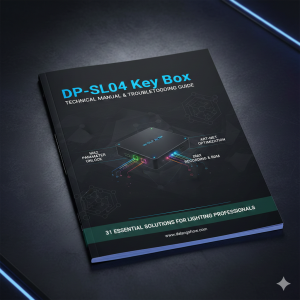
First-time setup for DP-SL04 Key Box: How to configure the USB Network Adapter IP

Guide: Setting up USB Network IP for DP-SL04 Key Box (First-Time Use)
If you are using the DP-SL04 Key Box for the first time, you can configure it via its USB Type-C port. Since the Key Box does not have a DHCP server (it won’t assign an IP to your computer automatically), you must manually set a static IP address on your PC to communicate with it.
Method 1: Connecting via USB Type-C (Virtual Network Card)
-
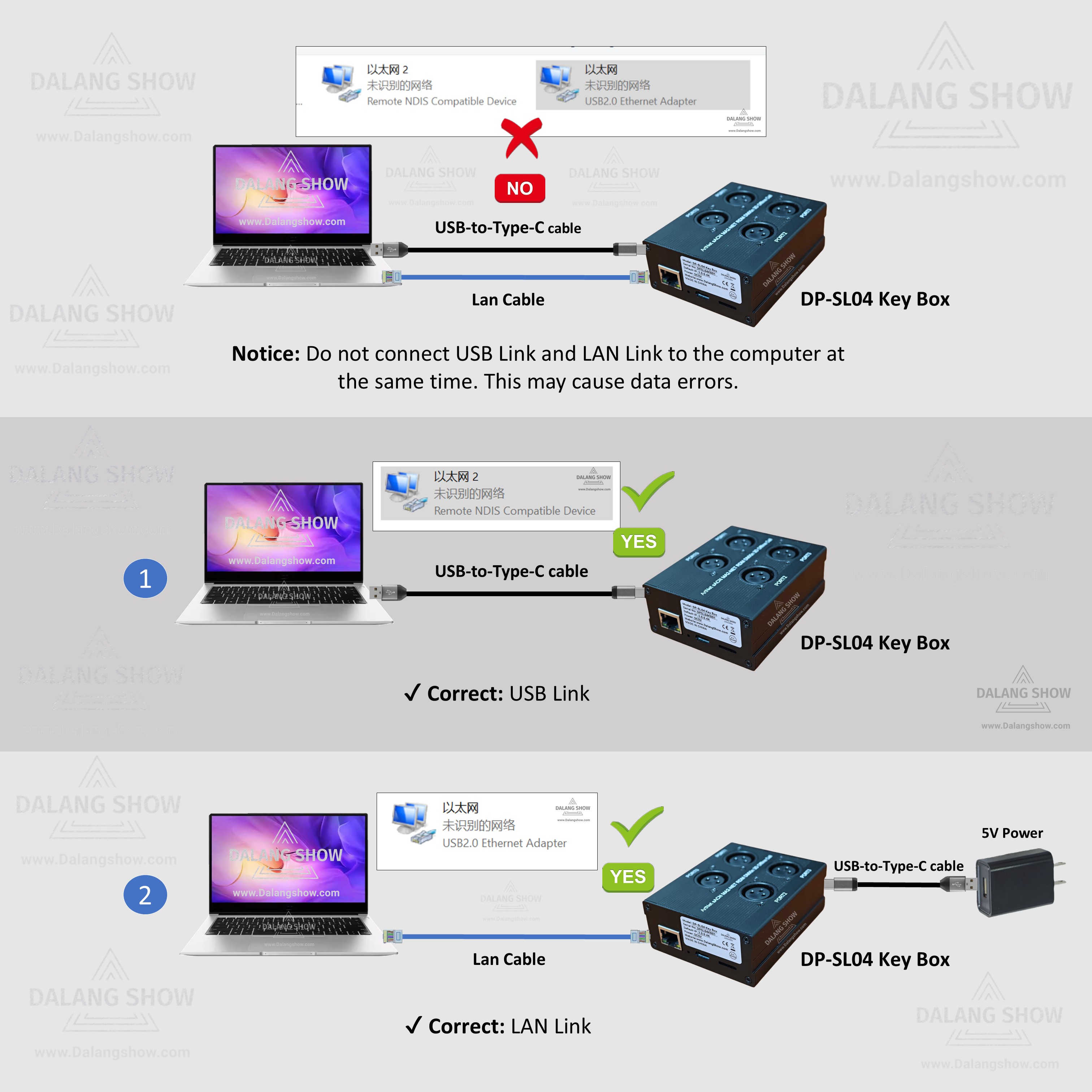
Connect the Hardware: Use a standard USB data cable to connect the Key Box Type-C port to your computer’s USB port.
-
Driver Installation: Windows will automatically recognize the device as a network adapter and install the necessary drivers. No manual driver installation is required.
-
The Logic: The default factory IP of the Key Box is
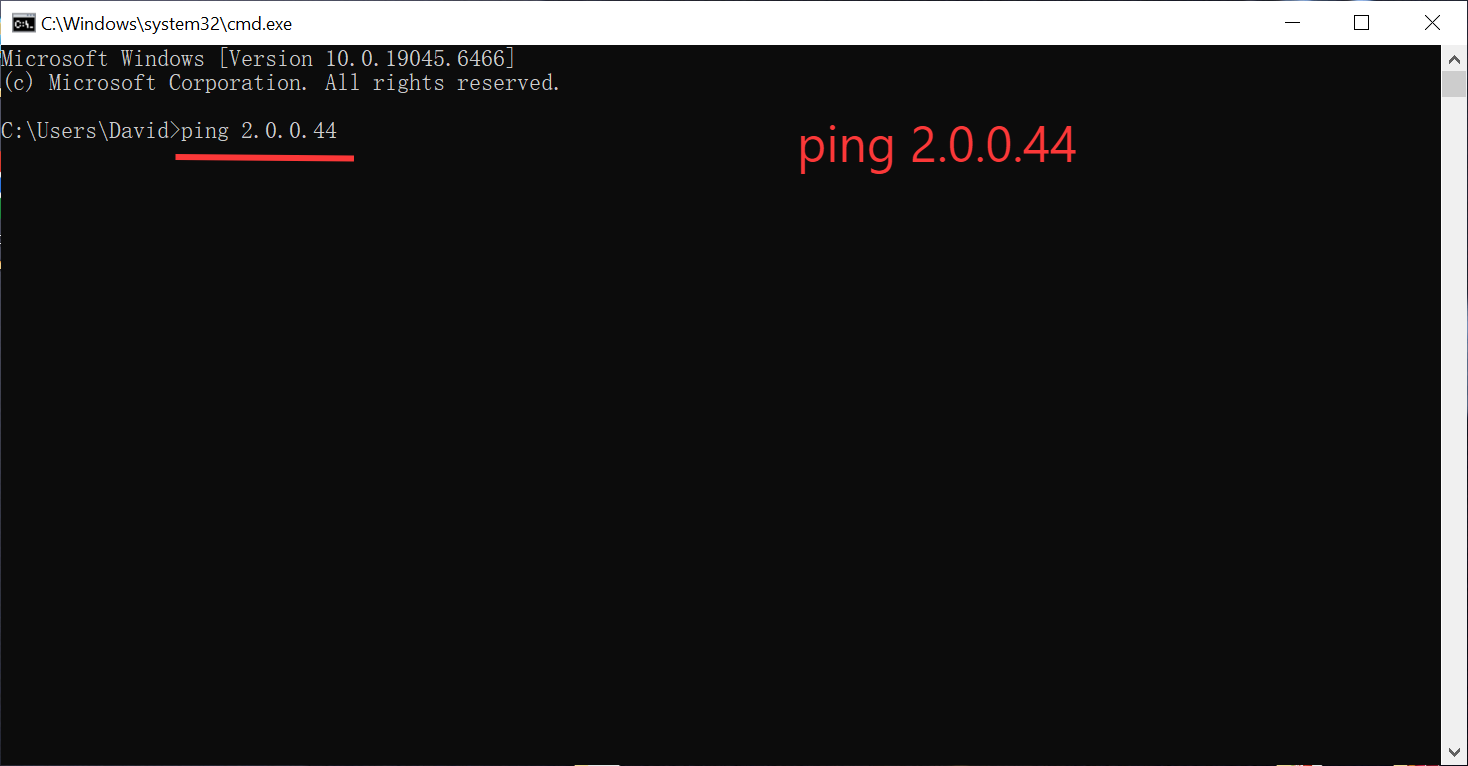
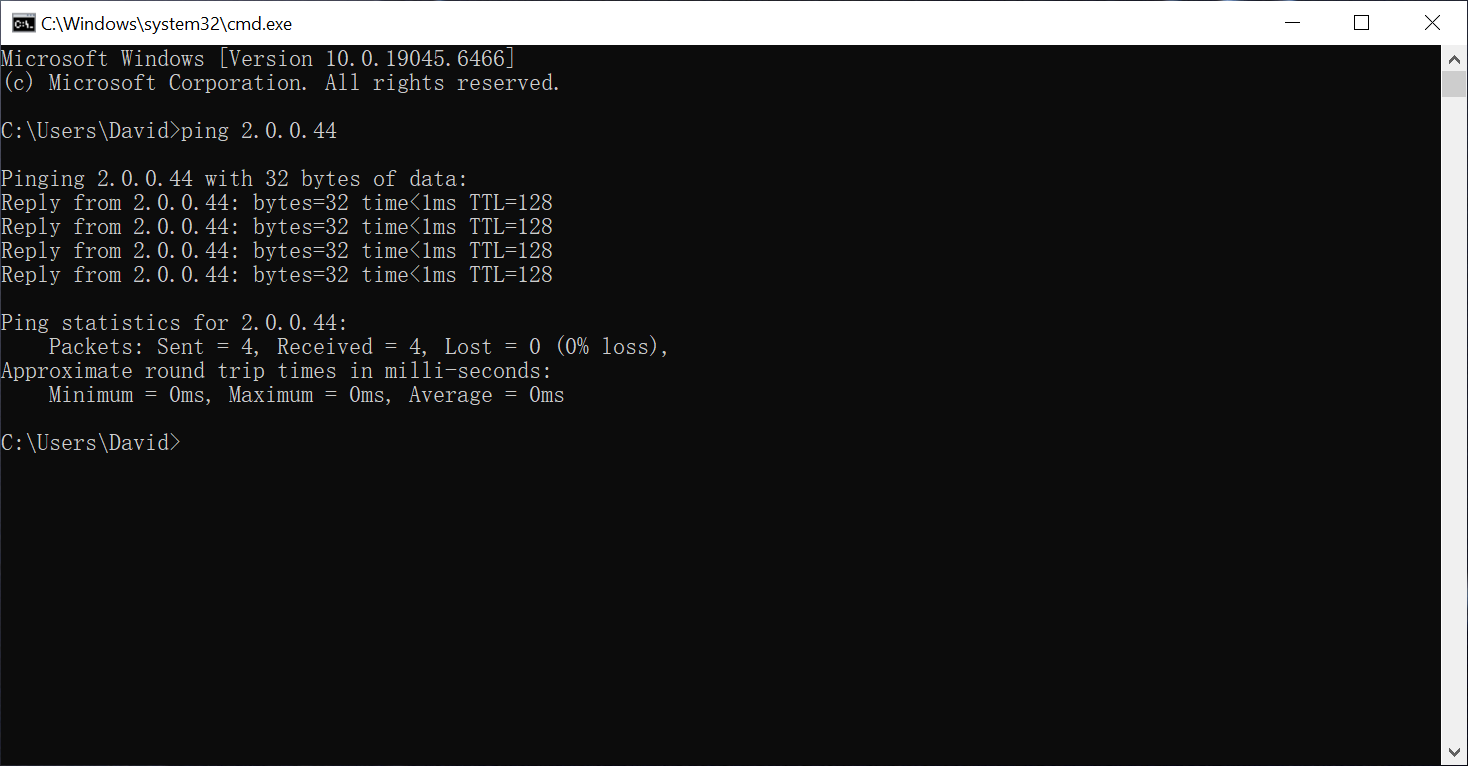
2.0.0.44. To talk to it, your computer’s USB network card must be set to the same network segment (e.g.,2.0.0.x).
Method 2: Connecting via LAN Port (Ethernet Cable)
-
If your computer has an Ethernet port, connect it directly to the Key Box LAN port using a network cable.
-
In this setup, the Type-C port on the Key Box acts only as a power input. Plug it into any 5V/1A (or higher) phone charger or USB power adapter.
Step-by-Step IP Configuration (Windows 10/11)
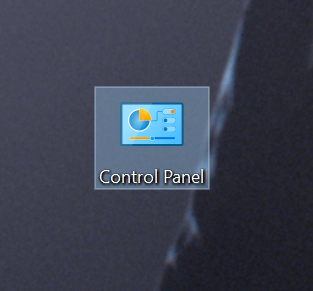
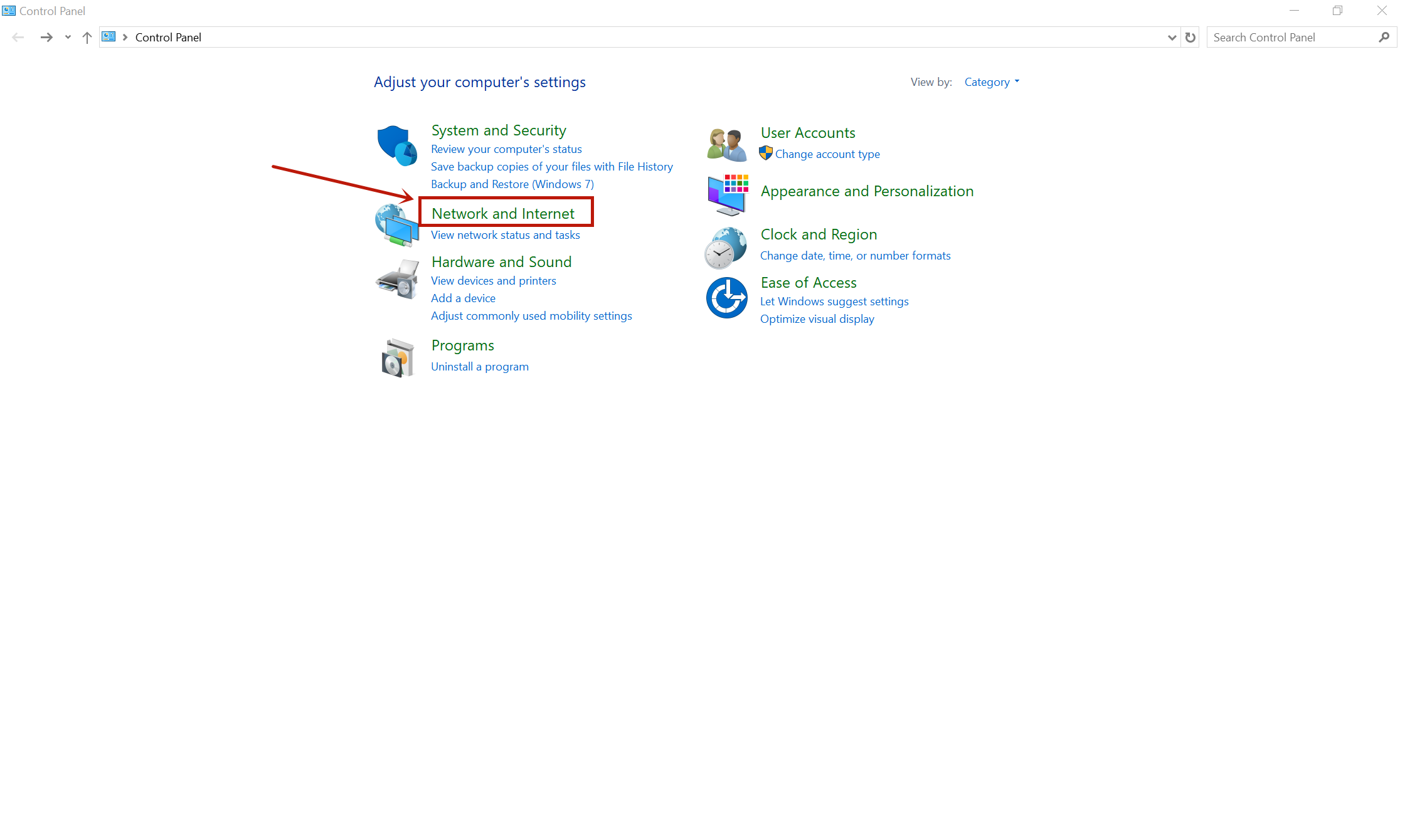
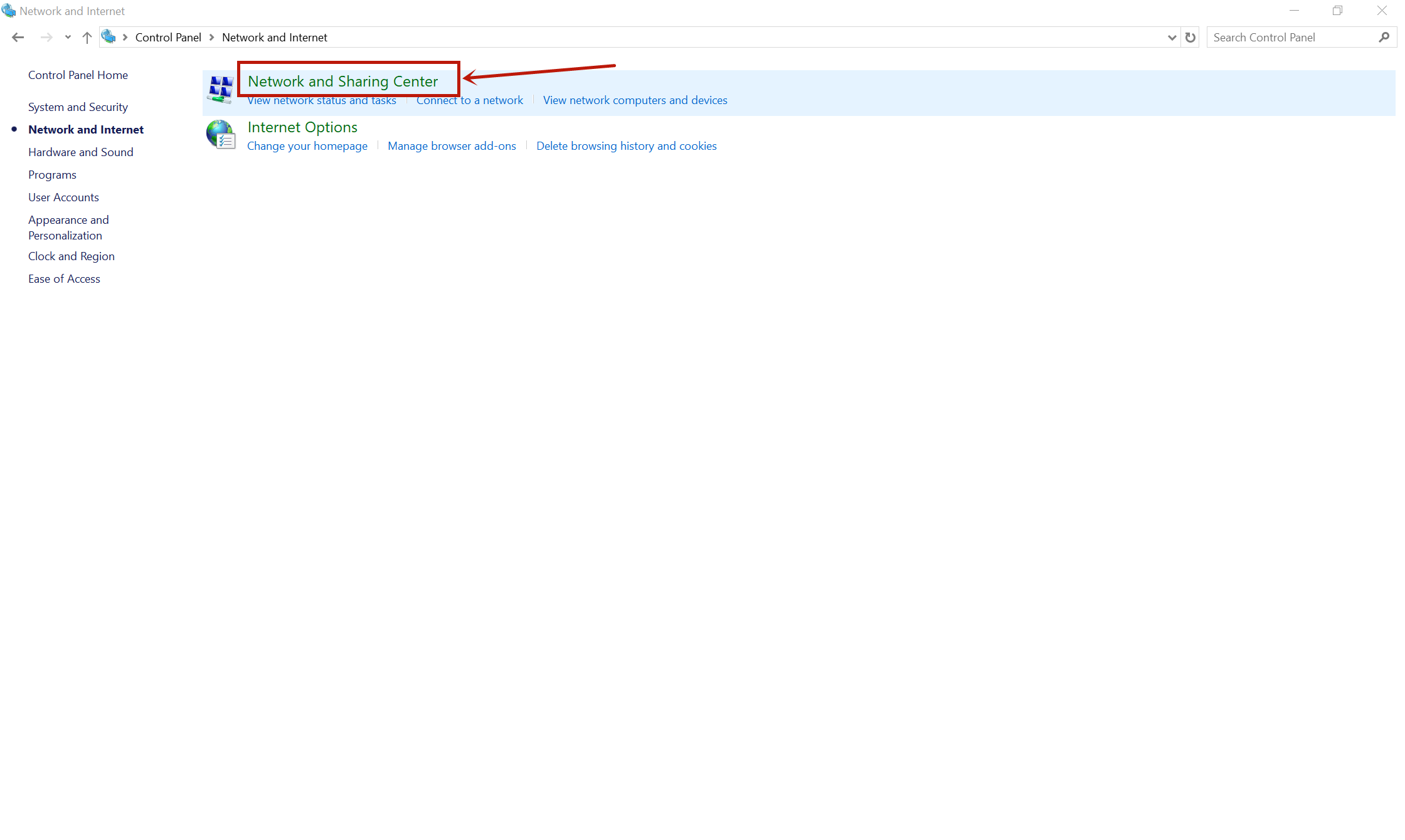
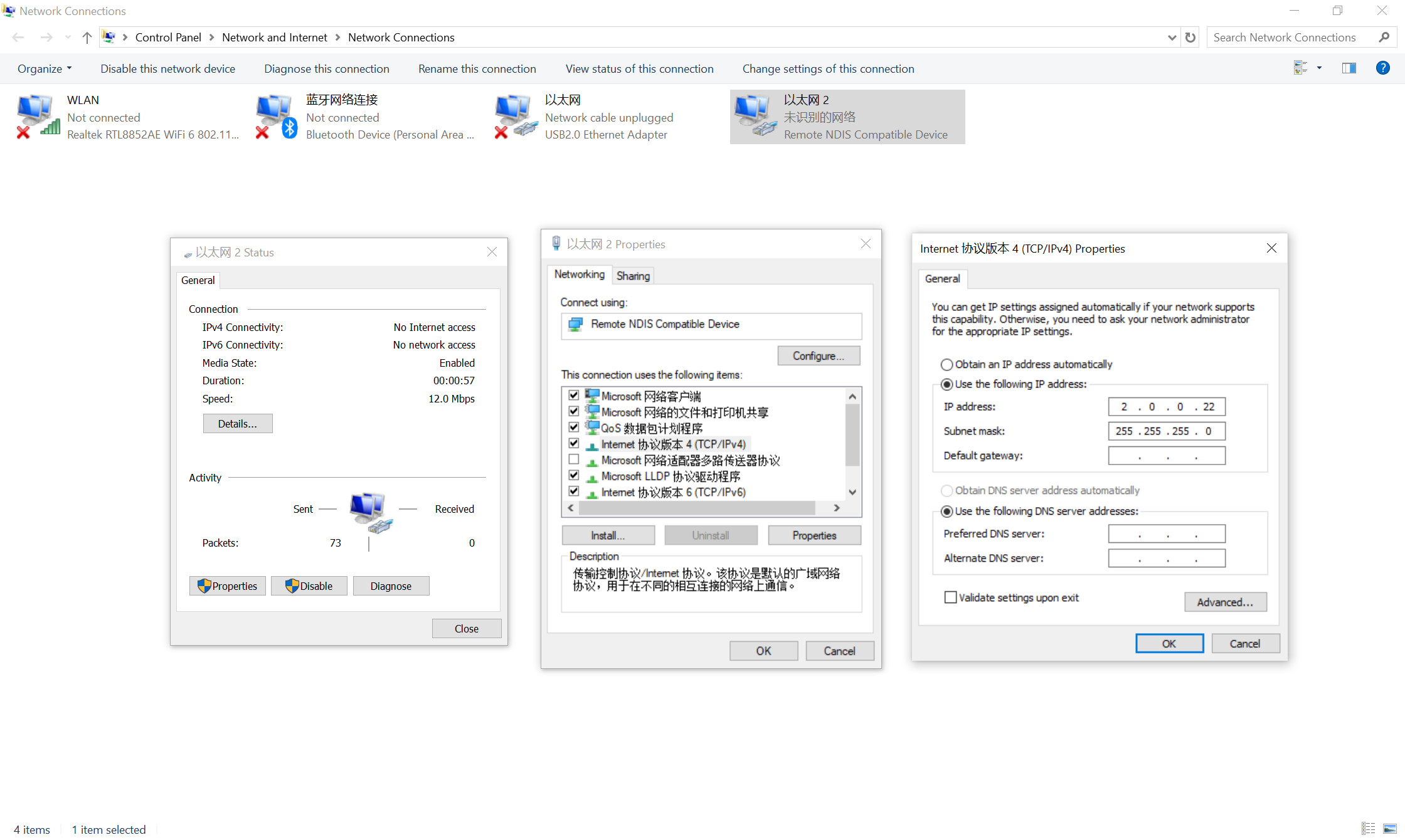
1. Open Network Connections
-
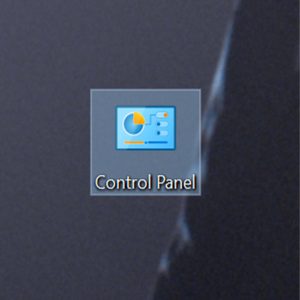
Right-click the Network/Wi-Fi icon in the bottom right corner of your taskbar.
-
Select “Network & Internet settings”.
-
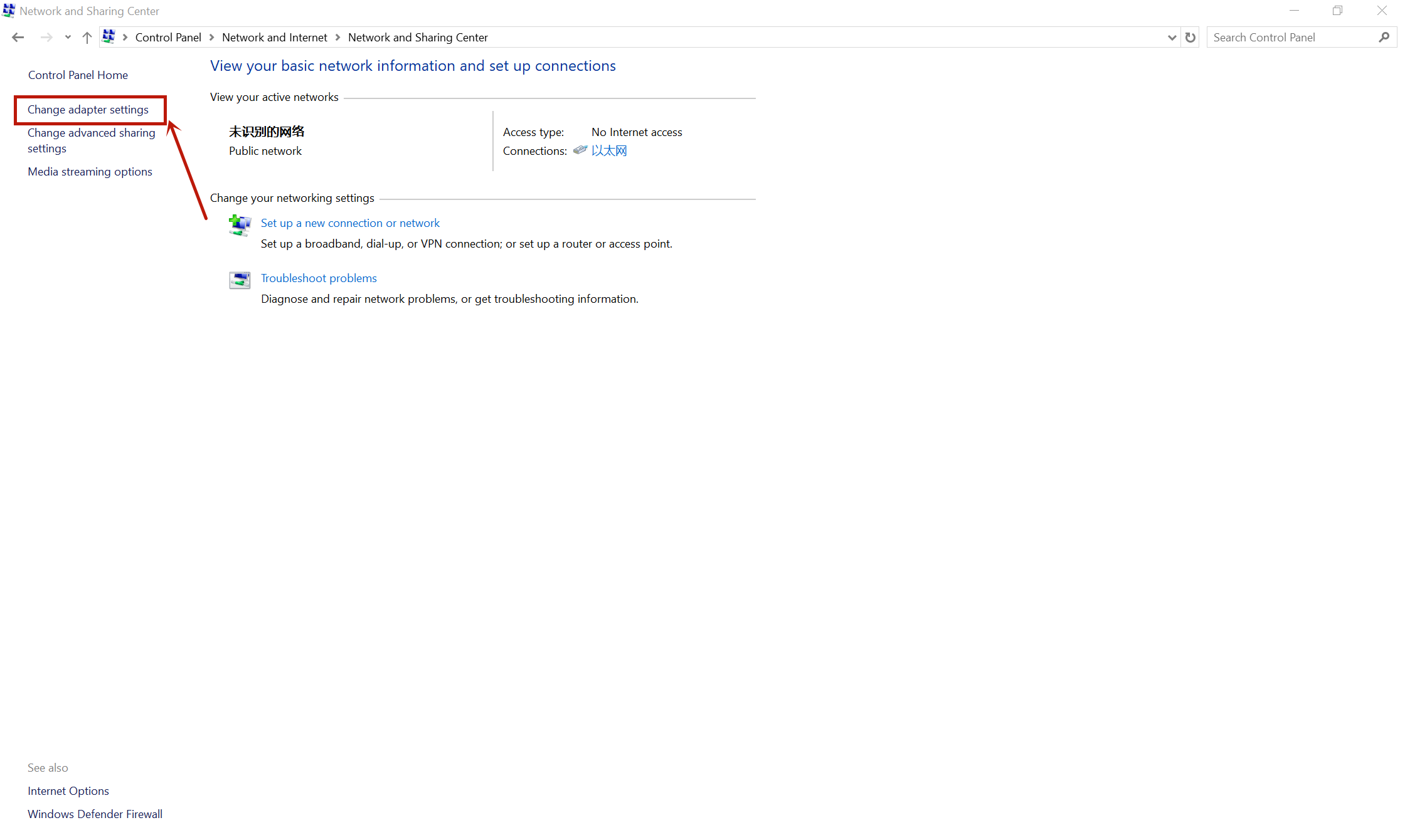
Click on “Advanced network settings” and then select “More network adapter options”.
2. Locate the Adapter
-
Find the adapter associated with the Key Box (it usually says “USB Ethernet” or “Remote NDIS”).
-
Right-click it and select Properties.
3. Set Static IP
-
Select “Internet Protocol Version 4 (TCP/IPv4)” and click the Properties button.
-
Select “Use the following IP address” and enter the following:
-
IP address:
2.0.0.22(You can use any number from 1–254, except 44) -
Subnet mask:
255.255.255.0 -
Default gateway: (Can be left blank)
-
-
Click OK to save.
Important Troubleshooting Tips
Warning: Even after setting a static IP, Windows sometimes reverts the setting to “Obtain an IP address automatically” (DHCP). If you cannot connect to the Key Box, double-check the IP settings first—this is the most common cause of connection failure.
-
Default Access: Once the IP is set, open your browser and type
2.0.0.44to access the management interface. -
Power Check: If using the USB-to-PC method, ensure your computer’s USB port provides enough power, or the device may disconnect intermittently.
🎞️First-time setup for DP-SL04 Key Box: How to configure the USB Network Adapter IPTutorial Video:


- Manage Active Connections: The box has limited shared memory for web services. If you have multiple tabs open for the WebAPP, it keeps the connections active. Please close the webpage when not in use.
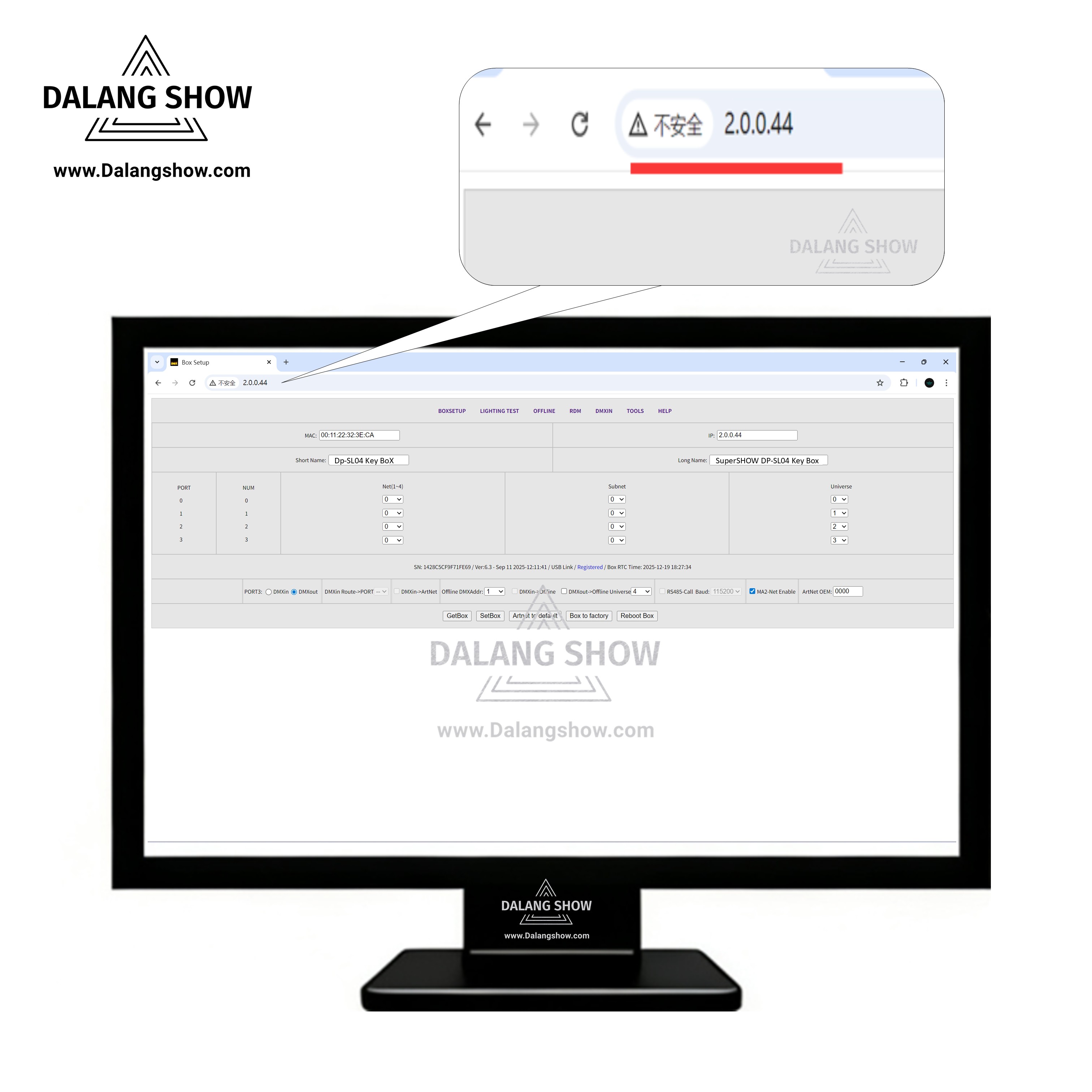
DP-SL04 Key Box IP Setup Tutorial (For Reference).
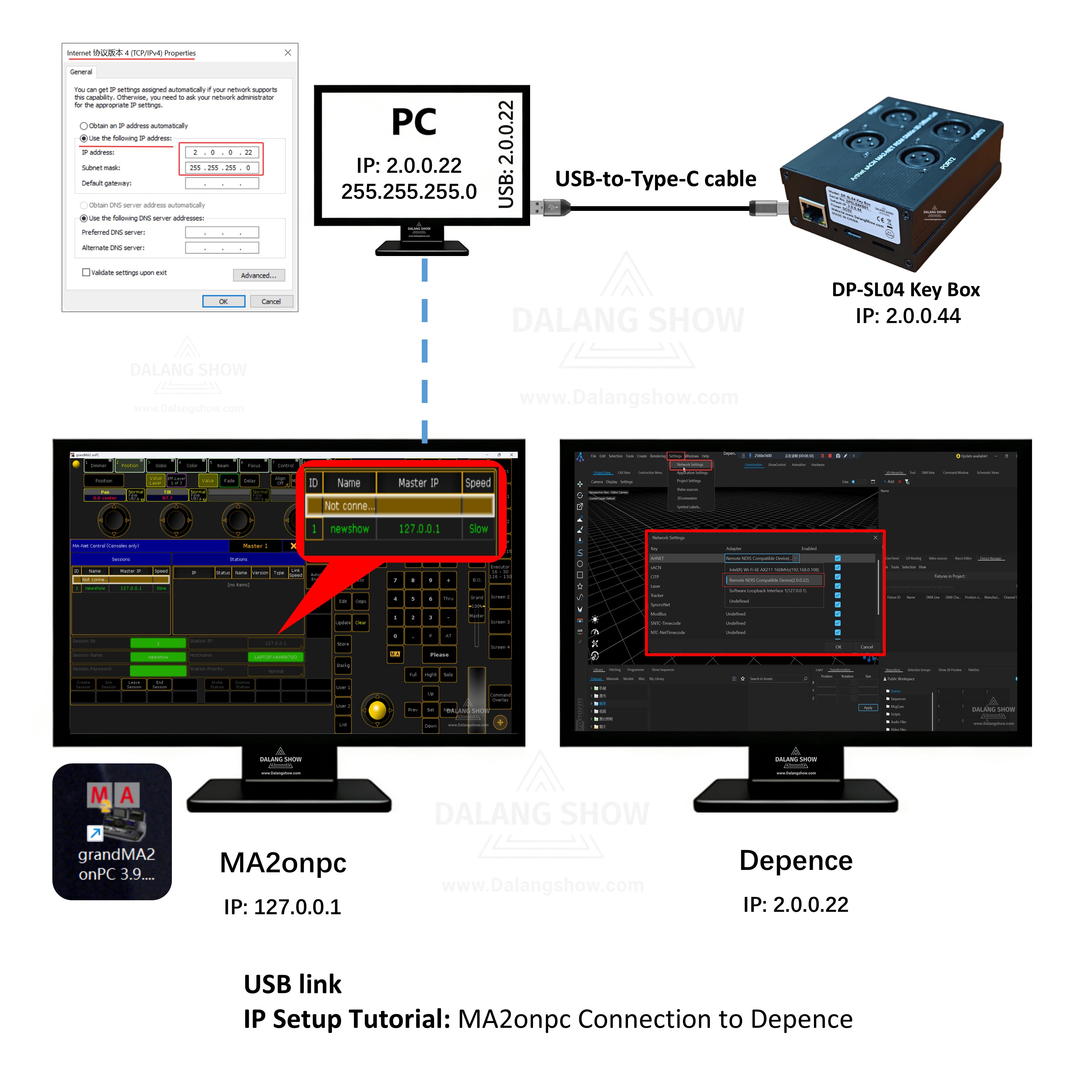
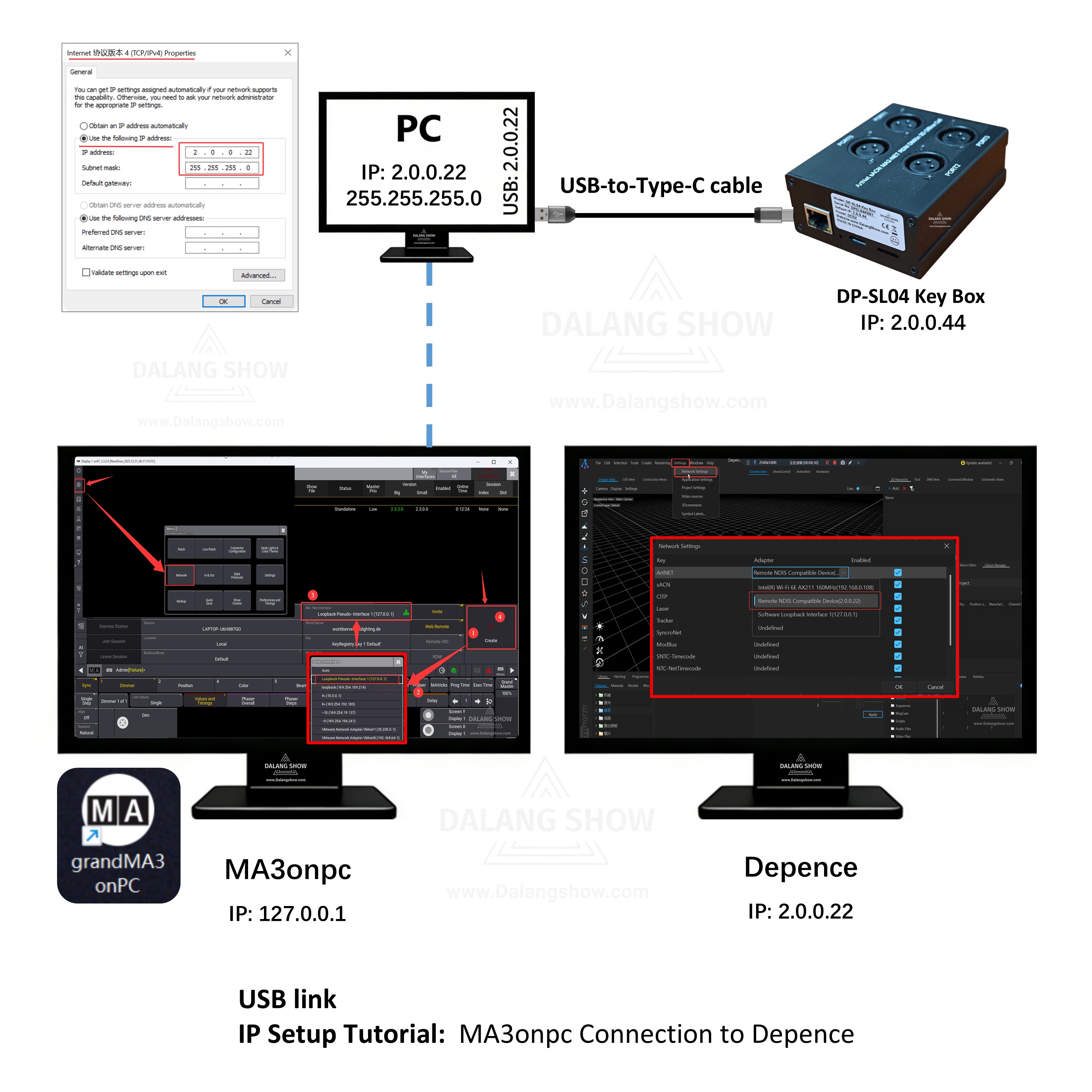
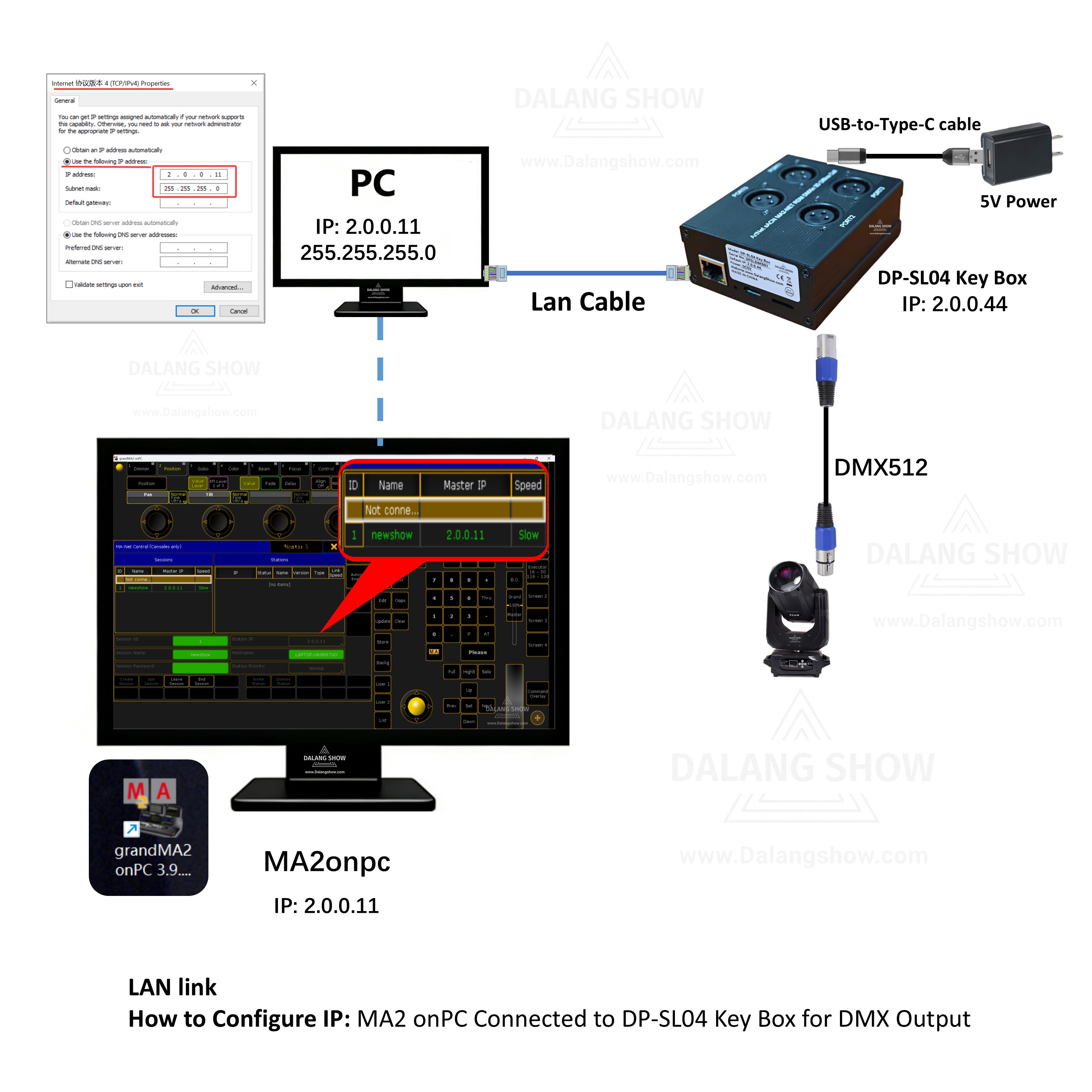
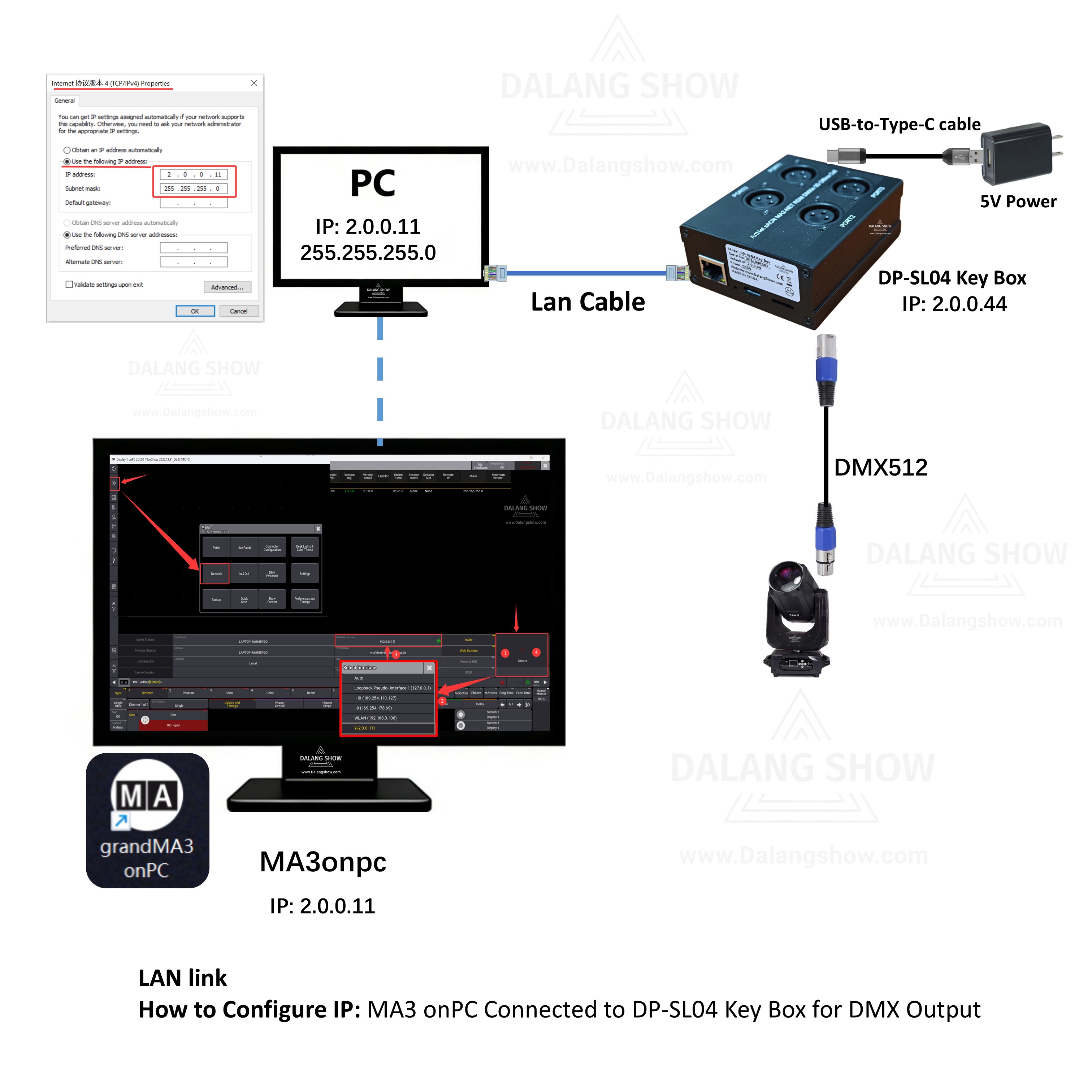
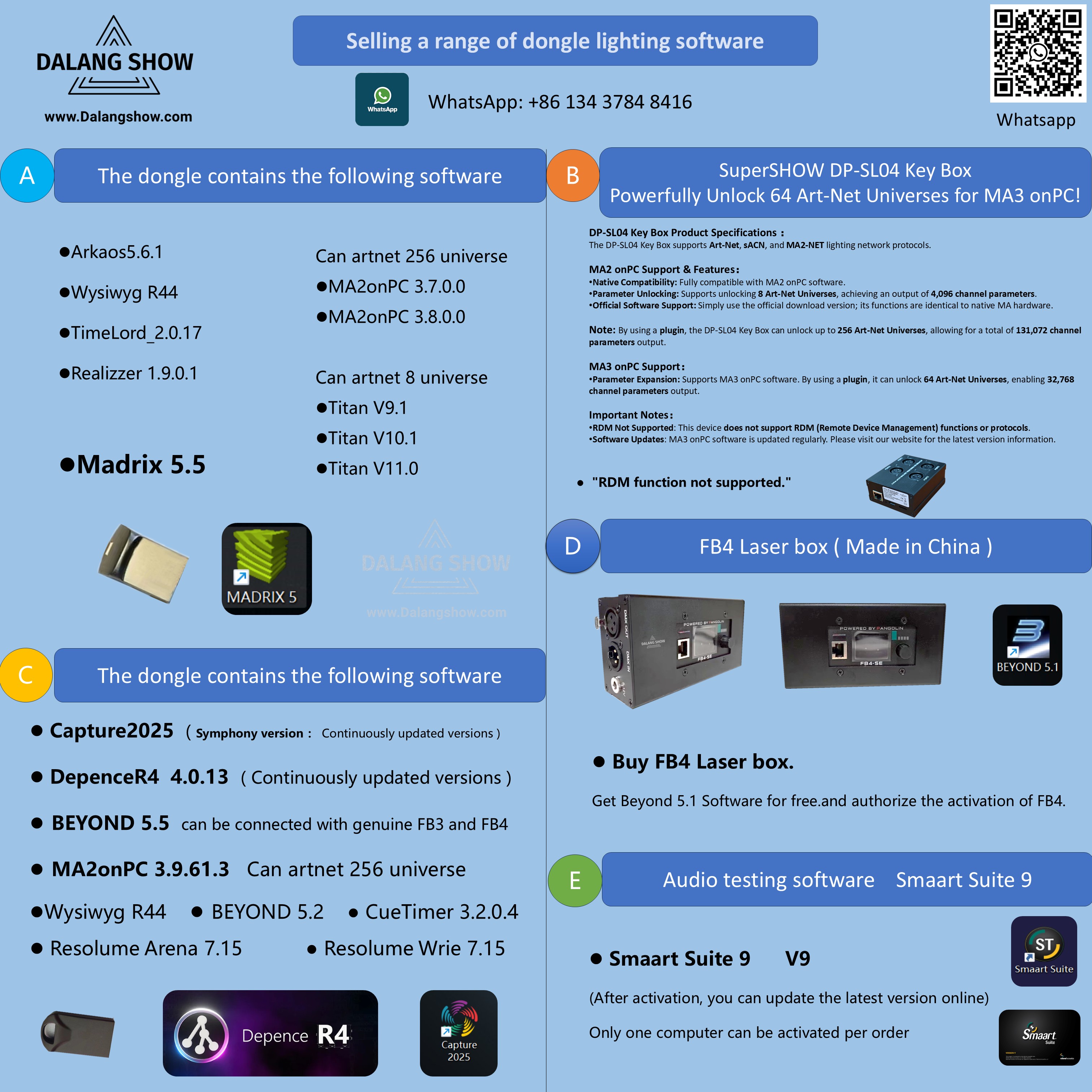
To ensure your DMX Universes are successfully unlocked, the DP-SL04 Key Box must be properly connected to your computer. Think of the Key Box as a Hardware Dongle: without a successful connection, the software remains in a restricted state.
💻 DP-SL04 Key Box Connection Guide
Core Requirement
-
Hardware Authorization: The unlocking of DMX Universes is tied directly to the physical detection of the DP-SL04.
-
Connection Mandatory: If the connection fails, the DMX Universes will remain locked.
Method 1: USB Type-C Connection (Virtual Network Card)
This is the most straightforward method for direct connection to a laptop or PC.
-
How to connect: Use a standard USB Type-C cable to link the Key Box to your computer’s USB port.
-
Mechanism: The computer will recognize the device as a Virtual Network Card.
-
Best for: Quick setups and mobile environments where extra power outlets or routers may not be available.
Method 2: LAN Port Connection (Ethernet Cable)
This method is ideal for professional lighting networks and permanent installations.
-
How to connect: Use a standard Ethernet Cable (RJ45) to link the Key Box’s LAN port to your computer’s network port or a network switch.
-
Mechanism: Communication happens via a standard Local Area Network (LAN) protocol.
-
Best for: Long-distance stability and integration into larger lighting control systems.
⚠️ Troubleshooting Checklist
-
Status Check: If the software shows “Locked” or “No License Found,” re-seat the cable and check the indicator lights on the Key Box.
-
Driver Recognition: For Method 1, ensure your Operating System has recognized the new “Network Adapter” in the Device Manager.
-
Conflict Prevention: Do not use both USB and LAN connections simultaneously unless your specific network configuration requires it, as this may cause IP conflicts.
Contact Information:
For better communication, you can reach us via:
- Mobile & WhatsApp: +86 13437848416
- WhatsApp: Click here to contact us
- You can contact us via WhatsApp to let us know your needs, or leave your comments, and we will reply to your messages promptly.
After-Sales Service:
We provide professional after-sales technical service to ensure you get great value and satisfaction!
- All products are covered by a one-year warranty for non-human issues.
- We adhere to the principle of low profit and high sales, dedicating ourselves to serving users. We will patiently explain and solve problems for you.
- We operate with integrity, ensuring all products are reliable and free from defects. If you are satisfied with our services and products, you can share DALANG SHOW with your friends. If you have any questions, please feel free to contact us.